How to Cherry Pick Commits in Git

Learn how to use git cherry-pick to apply specific commits across branches, handle conflicts, and safely undo changes.
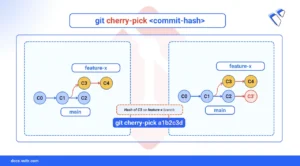
When managing code with Git, you often work across multiple branches. Sometimes, you need a specific change from one branch but don’t want to merge the entire branch’s history. Git’s cherry-pick command allows you to select and apply a specific commit from one branch onto another. This is different from merging or rebasing, which integrate entire branches. With cherry-pick, you precisely select only the commits you need.
This article explains how to use git cherry-pick to apply single or multiple commits, handle conflicts, and undo changes when necessary.
The Short Answer Version
# Apply a specific commit to your current branch
$ git cherry-pick <commit-hash>

# Apply a range of commits (from start-commit to end-commit)
$ git cherry-pick <start-commit-hash>^..<end-commit-hash>

# Apply multiple, non-consecutive commits
$ git cherry-pick <hash1> <hash2>

# Abort a cherry-pick that has conflicts
$ git cherry-pick --abort

# Continue a cherry-pick after resolving conflicts
$ git cherry-pick --continue
Cherry-Pick a Single Commit
Cherry-picking is ideal when you need to transfer a single, specific change—such as a hotfix or a small feature—from one branch to another without merging all the other changes from that branch.
Command Syntax
git cherry-pick <commit-hash><commit-hash>: The unique identifier (SHA-1 hash) of the commit you want to apply.
Command Demonstration
- Identify the commit you want to
cherry-pick, check out the branch that contains the commit.console$ git checkout feature-branch - Use
git logto find the commit’s hash.console$ git log --onelineOutput:
a1b2c3d Fix critical bug
d4e5f6a Add new feature
g7h8i9j Initial commit
Copy the hash of the commit you need, for example,
a1b2c3d. - Switch to the target branch where you want to apply the commit.
console
$ git checkout main - Cherry-pick the commit using its hash.
console
$ git cherry-pick a1b2c3dThe command above applies the changes from commit
a1b2c3dto the main branch, creating a new commit with the same content and message, but a different hash.
Cherry-Pick Multiple Commits
In addition to applying a single commit, you can cherry-pick a sequence of commits or select multiple specific commits. This is useful when you need to transfer a set of changes without merging an entire branch.
Cherry-Pick a Range of Commits
To apply a series of consecutive commits from another branch, use the .. notation.
Command Syntax
git cherry-pick <start-commit-hash>^..<end-commit-hash><start-commit-hash>^: The^symbol tells Git to start from the commit before the specified start commit.<end-commit-hash>: The last commit in the range to be applied.
Command Demonstration
To apply the last two commits from feature-branch to main:
$ git cherry-pick d4e5f6a^..a1b2c3d
The command above applies commits starting from d4e5f6a to a1b2c3d to the main branch in the same order.
Cherry-Pick Specific Commits
To apply multiple, non-consecutive commits, list their hashes in the order you want them applied.
Command Syntax
git cherry-pick <hash1> <hash2> <hash3>Command Demonstration
To apply only the specific commits from a branch:
$ git cherry-pick g7h8i9j a1b2c3d
This command applies the changes from commits g7h8i9j and a1b2c3d to the current branch, in the specified order, while skipping the other commit.
Handling Cherry-Pick Conflicts
A conflict occurs if the changes in the cherry-picked commit overlap with changes in your current branch. Git will pause the process and ask you to resolve the conflict manually.
- When a conflict occurs,
git statuswill show the conflicted files.console$ git statusOutput:
On branch main You are currently cherry-picking commit a1b2c3d. (fix conflicts and run "git cherry-pick --continue") (use "git cherry-pick --abort" to cancel the cherry-pick operation) Unmerged paths: (use "git add <file>..." to mark resolution) both modified: config.yml - Open the conflicted file in a text editor. Look for the conflict markers (
<<<<<<<,=======,>>>>>>>), edit the file to keep the correct code, and remove the markers. - After resolving the conflict, stage the modified file.
console
$ git add config.yml - Continue the cherry-pick process.
console
$ git cherry-pick --continueIf you prefer to cancel the
cherry-pickand return to the previous state, run:console$ git cherry-pick --abort
Undoing a Cherry-Pick
If you make a mistake during cherry-picking, you can undo the changes in two ways depending on whether the commit has been pushed to a remote repository.
- If you have not pushed the commit to a remote repository, you can remove it from your local history using
git reset.console$ git reset --hard HEAD~1This above command discards the most recent commit and any uncommitted changes in your working directory. Use it with caution.
- If you have already pushed the cherry-picked commit, avoid rewriting history. Instead, use
git revertto create a new commit that reverses the changes.console$ git revert <cherry-picked-commit-hash>This command creates a new commit that reverts the changes introduced by the specified cherry-picked commit, preserving your history and avoiding conflicts with collaborators.
Conclusion
In this article, you learned how to use git cherry-pick to apply specific commits from one branch to another. You now know how to pick single or multiple commits, resolve conflicts, and undo a cherry-pick. This command gives you precise control over your repository’s history, making it an essential tool for managing complex workflows like hotfixes and selective feature integration.