How to Deploy GitLab CE – DevOps Management Suite

How to Deploy GitLab CE – DevOps Management Suite
Deploy GitLab CE with Docker Compose and Traefik for secure, production-ready DevOps workflows.
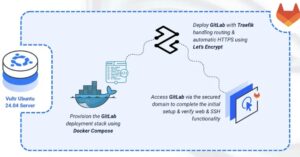
GitLab CE (Community Edition) is a complete, open-source DevOps platform. Unlike lightweight alternatives, GitLab provides a comprehensive suite of tools in a single application, including source code management, CI/CD pipelines, security testing, and project planning.
This article demonstrates how to deploy GitLab CE on Ubuntu 24.04 using Docker Compose and secure it with HTTPS via a Traefik reverse proxy.
Prerequisites
Before you begin:
- Have access to an Ubuntu 24.04 server as a non-root user with sudo privileges. Refer the official Gitlab installation requirements page to estimate the system requirements for your workload.
- Install Docker and Docker Compose.
- Configure a domain name, such as
gitlab.example.com, to point to your server’s public IP address.
Set Up the Directory Structure and Environment Variables
Set up the project directory to store persistent GitLab configuration, logs, data, and Let’s Encrypt certificates.
- Create folders to store GitLab volumes and Let’s Encrypt certificates.
console
$ mkdir -p ~/gitlab/{config,logs,data,letsencrypt}
config– GitLab configuration files.logs– Logs for the various bundled services.data– Repositories and database data.letsencrypt– Traefik ACME certificates.
- Navigate to the root GitLab directory.
console
$ cd ~/gitlab
- Create a file named
.envin the project directory to store the environment variables.console$ nano .envAdd these values:
iniGITLAB_DOMAIN=gitlab.example.com LETSENCRYPT_EMAIL=admin@example.com
Replace
gitlab.example.comwith your domain andadmin@example.comwith your email. Save and close the file.
Deploy with Docker Compose
Deploy GitLab with Docker Compose using the official Omnibus image and Traefik as the reverse proxy.
- Add your user account to the docker user group.
console
$ sudo usermod -aG docker $USER
- Apply new group membership.
console
$ newgrp docker - Create and edit a Docker Compose manifest file.
console
$ nano docker-compose.yml - Add the following contents:
yaml
services:
  traefik:
    image: traefik:latest
    container_name: traefik
    restart: unless-stopped
    environment:
      DOCKER_API_VERSION: "1.44"
    command:
      - "--providers.docker=true"
      - "--providers.docker.exposedbydefault=false"
      - "--entrypoints.web.address=:80"
      - "--entrypoints.websecure.address=:443"
      - "--entrypoints.web.http.redirections.entrypoint.to=websecure"
      - "--entrypoints.web.http.redirections.entrypoint.scheme=https"
      - "--certificatesresolvers.le.acme.httpchallenge=true"
      - "--certificatesresolvers.le.acme.httpchallenge.entrypoint=web"
      - "--certificatesresolvers.le.acme.email=${LETSENCRYPT_EMAIL}"
      - "--certificatesresolvers.le.acme.storage=/letsencrypt/acme.json"
    ports:
      - "80:80"
      - "443:443"
    volumes:
      - /var/run/docker.sock:/var/run/docker.sock:ro
      - ./letsencrypt:/letsencrypt

  gitlab:
    image: gitlab/gitlab-ce:latest
    container_name: gitlab
    restart: always
    hostname: ${GITLAB_DOMAIN}
    shm_size: '256m'
    environment:
      GITLAB_OMNIBUS_CONFIG: |
        external_url 'https://${GITLAB_DOMAIN}'
        nginx['listen_port'] = 80
        nginx['listen_https'] = false
        nginx['proxy_set_headers'] = {
          "X-Forwarded-Proto" => "https",
          "X-Forwarded-Ssl" => "on"
        }
        gitlab_rails['gitlab_shell_ssh_port'] = 2222
    ports:
      - "2222:22"
    volumes:
      - ./config:/etc/gitlab
      - ./logs:/var/log/gitlab
      - ./data:/var/opt/gitlab
    labels:
      - "traefik.enable=true"
      - "traefik.http.routers.gitlab.rule=Host(`${GITLAB_DOMAIN}`)"
      - "traefik.http.routers.gitlab.entrypoints=websecure"
      - "traefik.http.routers.gitlab.tls=true"
      - "traefik.http.routers.gitlab.tls.certresolver=le"
      - "traefik.http.services.gitlab.loadbalancer.server.port=80"
Save and close the file. This Docker Compose file deploys GitLab CE behind Traefik, enabling secure HTTPS access using Let’s Encrypt. Each service has a specific purpose:
gitlab service
- Runs the official
gitlab/gitlab-ceOmnibus image, providing the full GitLab platform including repositories, issues, CI/CD pipelines, container registry, and administrative tools. - Stores configuration, logs, and persistent application data in the
./config,./logs, and./datadirectories. - Uses the
GITLAB_OMNIBUS_CONFIGenvironment block to:- Set the external URL to your domain.
- Disable GitLab’s internal HTTPS listener so Traefik can handle TLS termination.
- Pass required reverse proxy headers so GitLab recognizes HTTPS correctly.
- Configure the SSH service to use port 2222 on the host to avoid conflicts with the host operating system’s SSH server.
- Exposes port 80 internally for the web interface, while Traefik routes external HTTPS traffic to this internal port.
traefik service
- Listens on ports 80 and 443 on the host, allowing it to receive and route all incoming HTTP/HTTPS traffic.
- Automatically provisions and renews TLS certificates using Let’s Encrypt via the ACME HTTP-01 challenge.
- Uses Docker labels on the GitLab container to discover the service and route traffic for your domain (
${GITLAB_DOMAIN}) to GitLab over HTTPS. - Stores certificates in the
./letsencryptdirectory. - Ensures all HTTP requests are redirected to HTTPS for secure access.
- Runs the official
- Start all services in detached mode.
console
$ docker compose up -d - Check container status.
console
$ docker compose psGitLab takes a few minutes to start the first time. The container status may say
health: startingfor several minutes before the web interface is accessible.NoteFor more information on managing a Docker Compose stack, see the How To Use Docker Compose article.
Access and Configure GitLab
- Retrieve the initial root password. GitLab generates a random password for the
rootuser on the first run.console$ sudo docker exec -it gitlab grep 'Password:' /etc/gitlab/initial_root_password
Copy the password string displayed in the output.
NoteThis file is automatically deleted after 24 hours. Ensure you change your password immediately after logging in.
- Open your browser and visit your GitLab domain
https://gitlab.example.com.

3.Log in using the username root and the password you retrieved in the previous step.
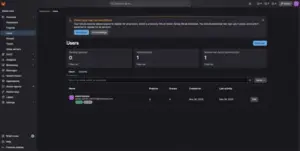
4.Once logged in, navigate to Admin area > Users to create a new user and set a new, secure password.
Conclusion
By following this article, you successfully deployed GitLab CE on Ubuntu 24.04 using Docker Compose. You have configured Traefik to handle HTTPS termination and mapped a custom SSH port for repository interaction. For more information, refer to GitLab Docs.