How to Add a Forum in WordPress with bbPress

Do you want to add a forum in WordPress with bbPress?
Forums are a great way to boost user engagement and build a community around your site. This can keep visitors coming back to your WordPress blog and grow your audience.
In this article, we will show you how to add a forum to your site with bbPress.
Why Add a Forum to Your WordPress Website?
A forum allows visitors to sign up, start threads, post replies, and connect with each other. When people engage with your content, they’re going to spend more time on your site, so a forum can increase your pageviews and reduce bounce rate.
An active forum can help build brand loyalty and get you more repeat visitors. If you make money online blogging with WordPress by showing ads, then an active forum can also increase your income.
If you run an online store, then a forum is another way to support your customers. Many people prefer to post their questions in a forum instead of calling customer service staff, so a forum can improve the quality of your customer support.
Forum members may even help each other out by sharing their own solutions, which will improve the customer experience without any extra work from you.
Finally, a forum can improve your WordPress SEO, particularly if a thread gets lots of replies and includes the keywords that people use to find your WordPress website.
With that being said, let’s see how you can add a forum in WordPress with bbPress.
How to Add a Forum in WordPress with bbPress
The easiest way to add a forum to your WordPress website is using bbPress. It is the best WordPress forum plugin and has everything you need to create, moderate, and maintain an online discussion board.
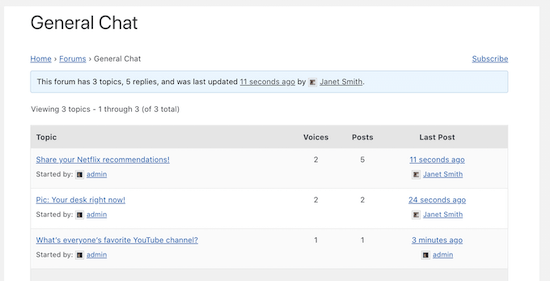
bbPress also works with any WordPress theme. In fact, many of the best WordPress themes come with custom bbPress styles. For more information, see our expert pick of the best WordPress themes for bbPress.
First, you’ll need to install and activate the bbPress plugin. If you need help, then please see our guide on how to install a WordPress plugin.
Upon activation, go to Forums » Add New.
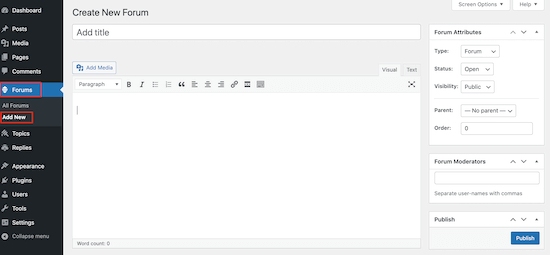
To start, type in a name for the new WordPress forum.
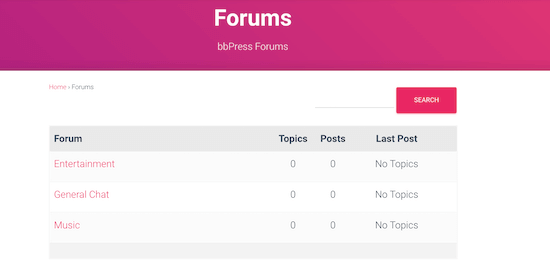
This will be visible to visitors, so you’ll want to use a title that describes what the forum is about. For example, the following image shows three forums called Entertainment, General Chat, and Music, on a page know as the forum index.
The title will also be used in the forum’s URL, so it’s smart to think about SEO and include relevant keywords where possible.
You can also add an optional description by typing into the main post editor. This description will appear on your site’s forum index page.
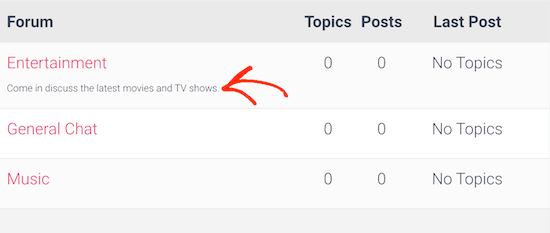
By default, bbPress forums are public which means everyone can see the forum including people who haven’t registered with your WordPress website. This can encourage people to sign up and join the conversation.
However, sometimes you may want to restrict access to a forum. For example, you might create a private forum for students who’ve purchased your latest online course.
To create a forum that only registered users can access, open the ‘Visibility’ dropdown and choose ‘Private.’
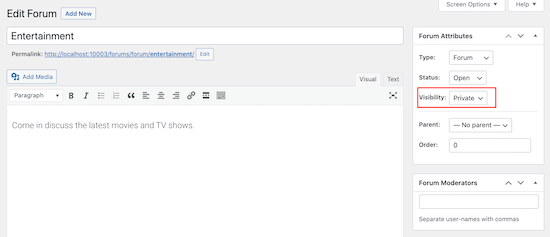
Note: The ‘Visibility’ dropdown also has a ‘Hidden’ option that only gives moderators and bbPress keymasters access. This setting allows you to remove a forum from your site without deleting its contents, similar to setting a live post back to ‘Draft.’
Next, you may want to add moderators. This WordPress user role allows people to edit and delete posts by other users, edit your forum, and manage the forum tags.
To give someone the moderator role, simply start typing their username into the ‘Forum Moderators’ field. To add multiple moderators, simply separate each name with a comma.
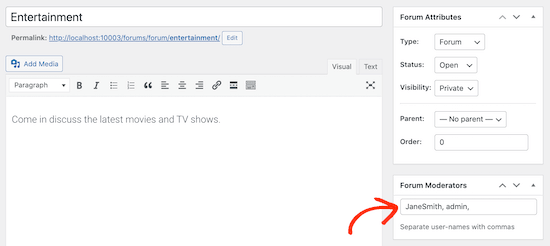
If the person doesn’t already have an account, then check out our guide on how to add new users to WordPress.
If you’re creating multiple forums, then you may want to organize them into a parent-child structure. For example, you might create a ‘Customer Support’ forum and then have a separate child forum for each WooCommerce product.
By default, bbPress creates each forum as a parent forum. To turn it into a child, simply open the ‘Parent’ dropdown and choose the forum that you want to use as the parent. This is similar to how you create categories and subcategories in WordPress.
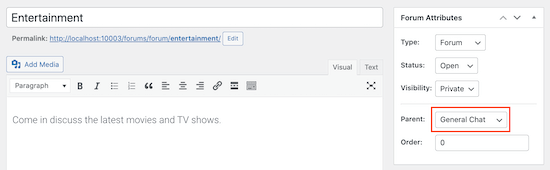
When you’re happy with how the forum is setup, click on the ‘Publish’ button.
You can create more forums by repeating the process described above.
How to Add the bbPress Forum Index to Your WordPress Website
bbPress creates a forum index automatically, which contains links to all your forums. To see this ready-made page, simply add ‘forums’ to the end of your site’s URL, such as www.example.com/forums.
You can also add the forum index to any area of your site, which gives you more control over how it looks. For example you might want to design a custom page using a drag and drop WordPress page builder like SeedProd, and then embed the forum index.
You can add the index to any page or post using the [bbp-forum-index] shortcode.
For more information on how to place the shortcode, see our guide on how to add a shortcode in WordPress.
How to Add Forums to the WordPress Menu
To help visitors find your forum we recommend adding it to the main navigation menu.
To update your site’s menu, simply go to Appearance » Menus. In the dropdown, select the menu that you want to edit and then click ‘Select.’
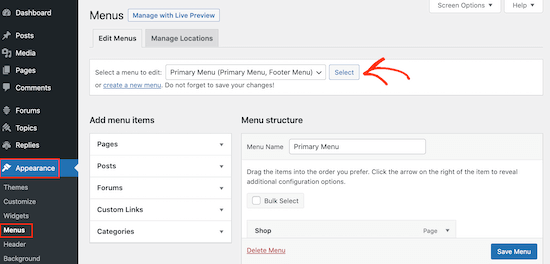
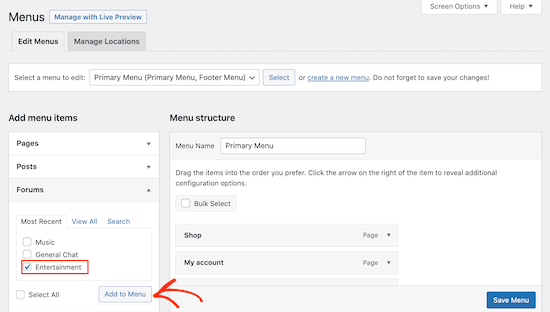
If you want to add a link to a specific forum, then click to expand the ‘Forums’ section.
You can then check any forum in this section and click on the ‘Add to Menu’ button.
If you’ve created lots of forums then there might not be enough space in the menu, even if you’re using a custom navigation menu or a dropdown menu.
In this case, you can add a link to the forum index so visitors can choose the forum they want to visit.
Simply click to expand the ‘Custom Links’ section and then add the index’s link to the ‘URL’ field. Remember this is simply your site’s URL with ‘/forums’ on the end, such as www.example.com/forums.
You’ll also need to type in the ‘Link Text,’ which will appear in the menu. Visitors will see this label, so you’ll want to use something descriptive.
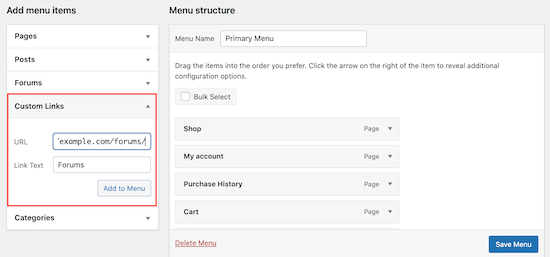
After that, click on the ‘Add to Menu’ button.
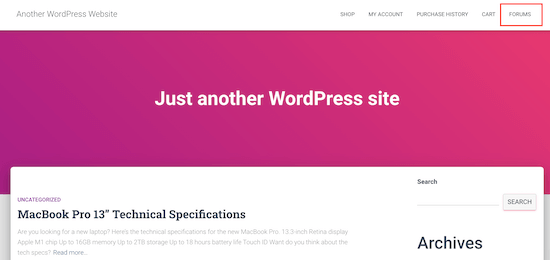
When you’re happy with how the menu is set up, click on ‘Save Menu.’ Now, if you visit your site you’ll see the updated menu in action.
How to Allow User Registration on Your WordPress Forum
Even if you’ve created a public forum, people will still need to register before they can post. This means you’ll need to allow user registration on your site, if you haven’t already.
After that, you’ll need to create a registration page so visitors can sign up to your forum.
bbPress comes with a built-in user registration form that you can add to your site. Simply open the page or post where you want to place the form and create a new shortcode block.
You can then add the following shortcode: [bbp-register].
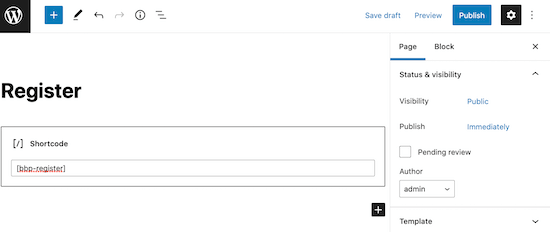
For step-by-step instructions on how to place the shortcode, please see our guide on how to add a shortcode in WordPress.
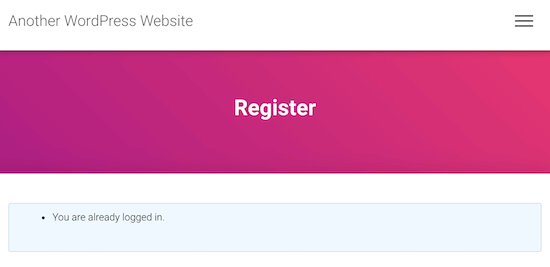
You can now publish or update the page to make the form live. If you visit the registration page while logged into your account, then you’ll see a ‘You are already logged in’ message.
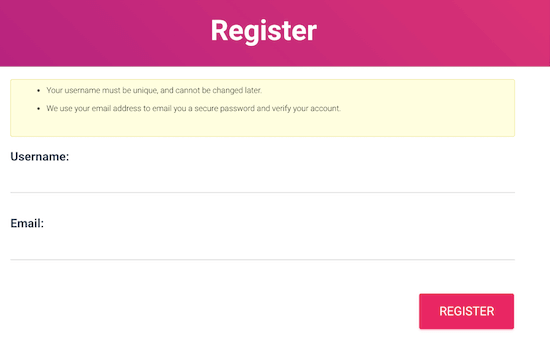
Try visiting the same page in your browser’s incognito tab or when logged out of your WordPress account.
Now, you’ll see the user registration form instead.
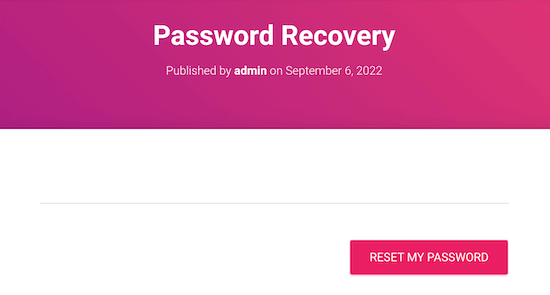
Next, you’ll need to give visitors a way to recover their account by creating a password reset page. Simply open the page or post where you want to add the bbPress password reset form, or create a new page.
Then, create a Shortcode block and add the following code: [bbp-lost-pass].
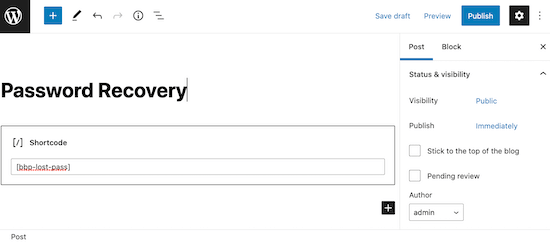
When you’re happy with how the page looks, click on ‘Publish’ or ‘Update’ to make your changes live.
To see the form in action, simply log out of your account or visit the password recovery page in an incognito tab.
Finally, you’ll need to add a login form so registered users can log into their account and post on your forum.
Thankfully, bbPress comes with a ready-made login widget that you can add to any widget-ready area. This allows visitors to access their account from any page on your WordPress blog or website.
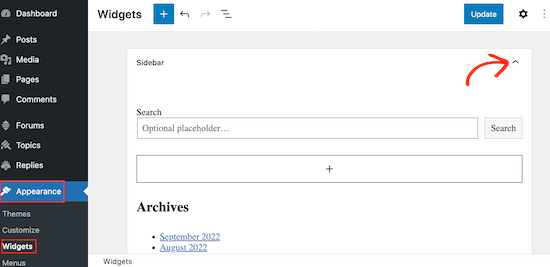
To add the widget, go to Appearance » Widgets. Then, find the area where you want to show the login widget and click on its arrow to expand.
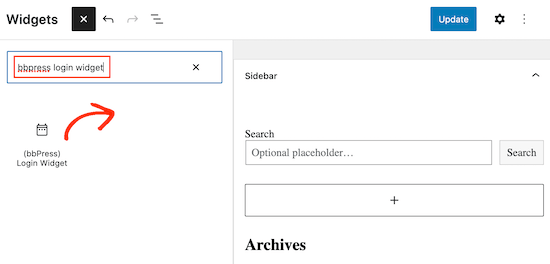
After that, go ahead and click on the blue + and search for ‘bbPress Login Widget.’
When the right widget appears, drag it to the area where you want to show the login form.
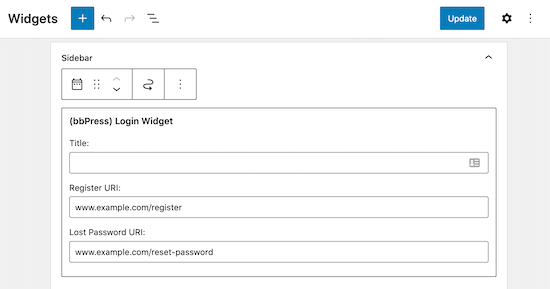
This form can also redirect visitors to your site’s registration and lost password pages, so make sure you add these URLs to the widget’s fields.
After adding this information to the ‘Registration URL’ and ‘Lost Password URL’ fields, click on the ‘Update’ button.
Try visiting your site while logged in, and you’ll see a ‘Log out’ link plus your username and user avatar.
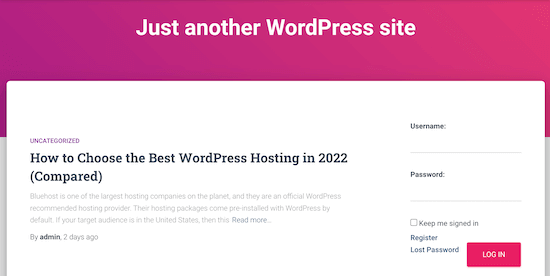
If you visit your website while logged out, then you’ll see the login form with links to the registration and password reset forms.
Managing bbPress Forum Settings
Unlike other popular forum software, bbPress has a very simple configuration page. To manage the settings for your bbPress forums, simply go to Settings » Forums.
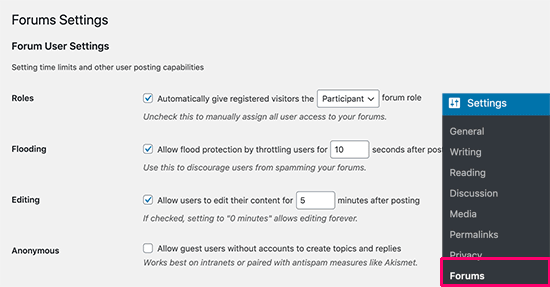
The default options on this page should work well for most forums. However, there are a few key settings you may want to change.
By default, a member can only post to your forum once every 10 seconds, which helps protect against spammers and bots. However, you can make the delay longer or shorter by typing a different number in the ‘Flooding’ field.
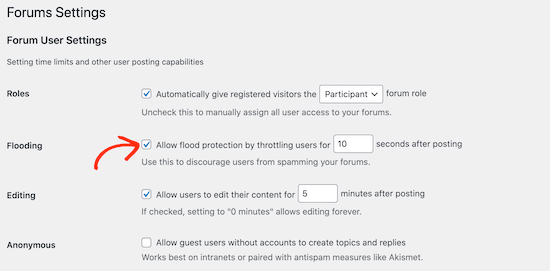
Out-of-the-box, bbPress lets users edit their posts for 5 minutes after publication. This gives members a chance to fix any spelling mistakes or other obvious errors.
You can give forum visitors more or less time by typing a new number into the ‘Editing’ box.
However, you’ll typically want to avoid giving members too much time, as they might go back and change a post someone has already replied to. This can make the thread difficult for other forum members to read and understand.
It’s also a good idea to look through the ‘Forum Features’ section, which has all the features you can add and remove from your forums.
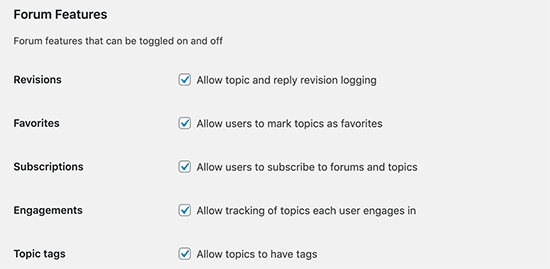
For example, bbPress allows visitors to embed videos from popular platforms like YouTube and Facebook. However, if this affects your forum’s page loading speed then you may want to try disabling the video embed feature.
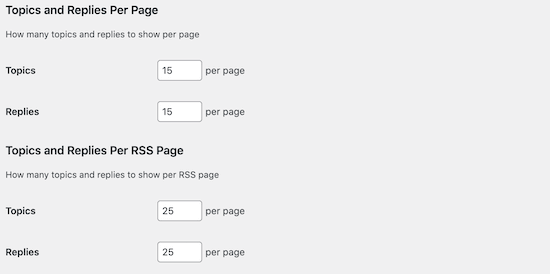
You can also change how many topics and replies bbPress shows on each page by typing new numbers into the ‘Topics and Replies Per Page’ section.
Pages that have lots of content may take longer to load, but clicking through lots of different pages can be frustrating. With that being said, you may want to try different settings to see what works best for your forum.
If you do try different forum settings, then we recommend tracking visitors to your WordPress site, to see how they respond to these changes.
Similarly, you can change how many topics and replies bbPress shows on your RSS feed.
There are some more settings you may want to look at, but this should be a good start for most WordPress forums.
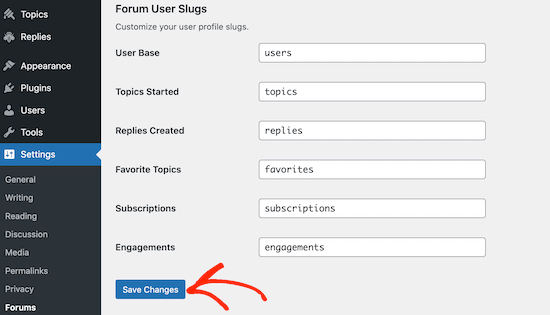
After working your way through the settings page, don’t forget to click on ‘Save changes’ to store your settings.
Extending and Promoting Your bbPress Forum
Now you’ve created a bbPress forum, it’s time to promote it and get lots of new members.
Let’s look at some plugins that can help grow your online forum more quickly.

There are many ways to build your audience, but a viral giveaway can give you instant results.
RafflePress is the best WordPress giveaway plugin on the market, and it allows you to easily run contests on your forum. It also comes with social media integrations for all of the most popular platforms so you can introduce your forum to a wider audience.
To learn more, see our step-by-step guide on how to create a viral giveaway contest.

At some point you may want to make money from your forum by selling subscriptions. For example, users might buy a membership to unlock extra features.
That’s where MemberPress comes in.
MemberPress is the best WordPress membership plugin and it has everything you need to monetize your WordPress forum. With MemberPress, you can create as many subscription levels as you want and accept payments using major gateways including Stripe and PayPal.
For more details, please see our complete guide on how to make a membership website.

By monitoring your forums, you can learn more about your visitors. For example, you might create support forums for the different products on your online marketplace.
If lots of people are visiting a particular support thread, then it may be a sign all your customers are experiencing the same problem.
MonsterInsights is the best analytics solution for WordPress that lets you set up analytics in just a few clicks. With MonsterInsights, you can see all the actions people take on your forum including which threads they visit.
To learn more about monitoring your forum, please see our step-by-step guide on how to install Google Analytics in WordPress.
Every forum needs a contact form, so members can get in touch if they have any questions or want to learn more about your products.
WPForms is the best contact form plugin for WordPress. It comes with a ready-made contact form template that you can add to your website with just a few clicks.
WPForms also has a drag-and-drop editor so you can completely customize the template without having to write a single line of code.
For more details, see our guide on how to create a contact form in WordPress.
You can even use WPForms to create surveys and polls for your members so you can get feedback and find out how to improve the user experience.
We hope that this article helped you learn how to add a forum in WordPress with bbPress. You may also want to see our guide on how to track visitors to your WordPress website or check out our expert pick of the best quiz plugins for WordPress.