How to Add an Author Info Box in WordPress Posts (4 Ways)

Do you want to add an author bio box to your WordPress posts?
The author bio box is a small section where you can display information about the post author, show social media links, and more. However, some WordPress themes don’t have this feature built-in, or you may want to customize it.
In this article, we’ll show you how to easily add an author info box to your WordPress blog.

Why Add an Author Info Box in WordPress?
By default, most WordPress themes will display the author’s name on a blog post but no other information about them.
Showing the actual person behind the content helps build credibility with your readers and can strengthen your site’s authority.
While an ‘About Me’ page can help, not every reader will take the time to visit it. Plus, if you have a multi-author WordPress site, then an author box can be useful to your readers who want to know more about the author behind each post.
Author boxes also provides authors an additional incentive to contribute more often and interact with readers, since they can share their own website and social media links to build their followers.
If you want more users to submit content to your website, then an author info box is a great way to attract writers looking for exposure and new audiences.
With that said, let’s show you how to add an author info box in WordPress. Simply use the quick links below to jump straight to the method you want to use.
- Adding an author box in WordPress theme settings
- Adding an author box in WordPress using a WordPress plugin
- Adding an author box in WordPress sidebars and widgets
- Adding an author box by adding code to WordPress
Method 1: Adding Author Info Box Using Your WordPress Theme Settings
Some of the best WordPress themes will come with an author info box that will automatically display below each article.
First, you’ll want to see if your current theme has built-in support for an author info box.
To do this, simply go to Users » All Users in your WordPress admin panel.
Then, hover over the user profile you want to change and click the ‘Edit’ link.
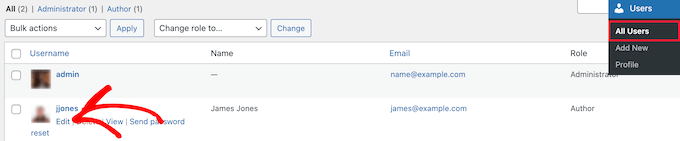
This brings you to the profile edit screen.
You’ll want to scroll down the page to the ‘Biographical Info’ section to add the author’s bio. You can also use HTML in this field to manually add links to the author’s social media profiles.
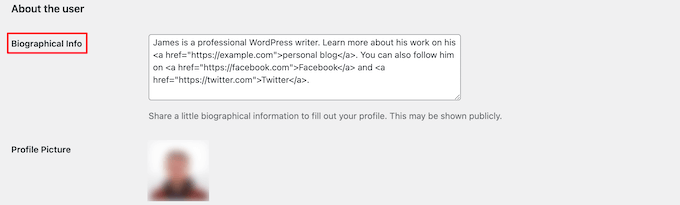
The author profile photo is automatically fetched from the service Gravatar. If the author has already set up an account, then this will display automatically.
Once you’re finished, make sure to click the ‘Update Profile’ button at the bottom of the page to save your changes.
Now, you can view any article on your website written by that author, and you’ll see your author bio box live.

Method 2. Adding Author Info Box in WordPress Using a WordPress Plugin
If your theme doesn’t have the option to show an author bio box or you want to customize how it looks, then this method is for you.
To do this, we’ll be using the Author Bio Box plugin. It’s one of the best author bio box plugins for WordPress that lets you simply add a customizable author bio box to your site.
First thing you need to do is install and activate the plugin. For more details, see our beginner’s guide on how to install a WordPress plugin.
Upon activation, you need to visit Settings » Author Bio Box to configure the plugin settings.
Here, you can choose the colors, gravatar size for the author photo, location to display the author bio box, and more.
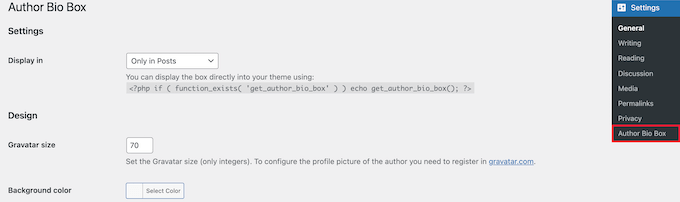
Once you’re done, make sure to click the ‘Save Changes’ button at the bottom of the screen to store your changes.
Next, you need to visit Users » All Users and click on the ‘Edit’ link below the user you want to add a bio.
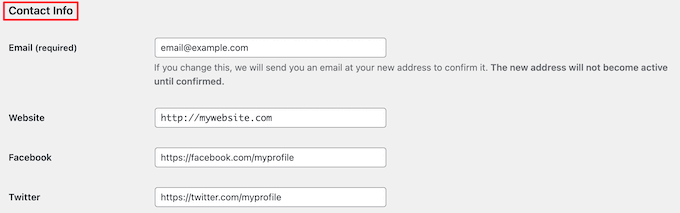
Then, scroll down to the ‘Contact Info’ section on the edit profile screen.
Here, you can add social media links for your author’s social media profiles. The plugin will only show icons for social networks where you enter a URL.
After that, scroll down to the ‘Biographical Info’ section to add the author’s bio.
You can also use HTML in this field to manually add links or use basic HTML formatting options.
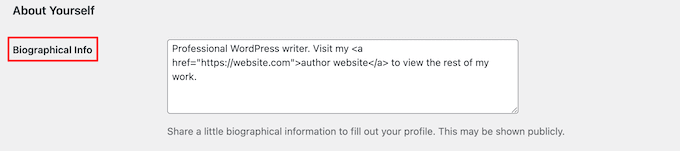
Once you’re finished, make sure to click the ‘Update Profile’ button to save your user profile changes.
You can now visit any article written by that user to see the author info box in action.
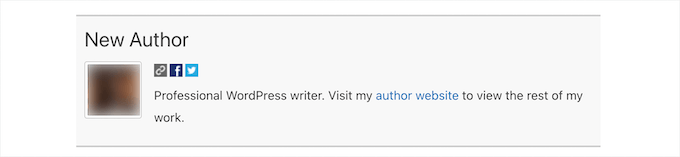
Method 3: Display Author Info Box in WordPress Sidebar Widget Area
Do you want to show the author info in the sidebar or widget area, instead of below the article? If yes, then this method is for you because it allows you to show the author info box in a sidebar widget.
For this method, you’ll need to install and activate the Meks Smart Author Widget plugin. For more details, see our step by step guide on how to install a WordPress plugin.
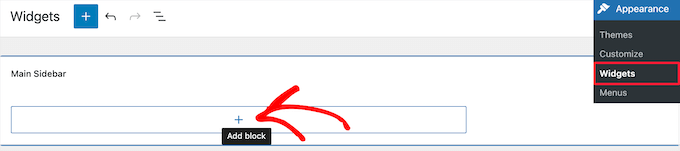
Upon activation, you need to visit Appearance » Widgets in your WordPress dashboard.
Then, click the ‘Plus’ add block icon in the ‘Sidebar’ widget area.
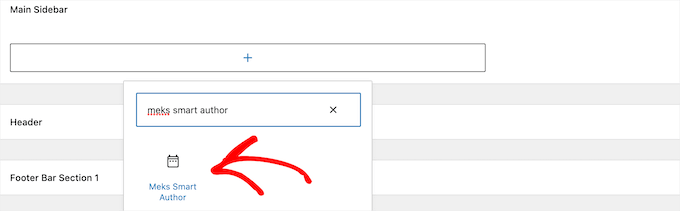
After that, you need to search for ‘Meks Smart Author’.
Then, click on the block to select it.
The widget comes with a number of options for you to customize how it displays.
The most important option you need to check is the checkbox next to ‘Automatically detect author’.
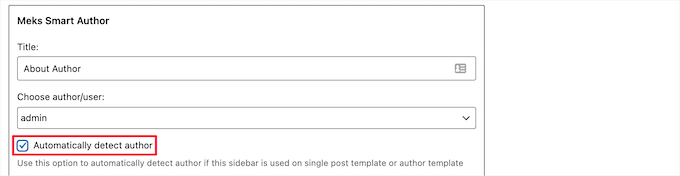
Then, click on the ‘Save’ button to store your widget settings.
You can now visit your website to see the author bio widget in action.
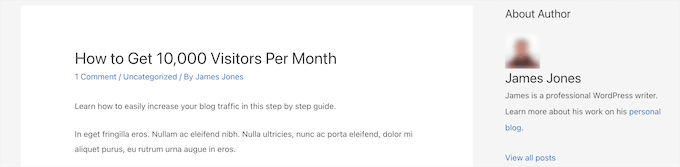
This plugin fetches user information from their WordPress profile. You or your authors need to fill in their bio information by editing their profiles.
To learn more about editing user profiles, see our guide on how to add new users and authors to your WordPress blog.
Method 4. Adding Author Info Box by Adding Code to WordPress
This method is for more advanced users because it requires you to edit your WordPress theme files. If you haven’t done this before, then see our guide on how to copy and paste code in WordPress.
Then, you can add the following code snippet to your functions.php file, in a site-specific plugin, or by using a code snippets plugin.
| 1234567891011121314151617181920212223242526272829303132333435363738394041424344454647484950515253545556 | functionwpb_author_info_box( $content) {global$post;// Detect if it is a single post with a post authorif( is_single() && isset( $post->post_author ) ) {// Get author's display name$display_name= get_the_author_meta( 'display_name', $post->post_author );// If display name is not available then use nickname as display nameif( empty( $display_name) )$display_name= get_the_author_meta( 'nickname', $post->post_author );// Get author's biographical information or description$user_description= get_the_author_meta( 'user_description', $post->post_author );// Get author's website URL$user_website= get_the_author_meta('url', $post->post_author);// Get link to the author archive page$user_posts= get_author_posts_url( get_the_author_meta( 'ID', $post->post_author));if( ! empty( $display_name) )$author_details= '<p class="author_name">About '. $display_name. '</p>';if( ! empty( $user_description) )// Author avatar and bio$author_details.= '<p class="author_details">'. get_avatar( get_the_author_meta('user_email') , 90 ) . nl2br( $user_description). '</p>';$author_details.= '<p class="author_links"><a href="'. $user_posts.'">View all posts by '. $display_name. '</a>'; // Check if author has a website in their profileif( ! empty( $user_website) ) {// Display author website link$author_details.= ' | <a href="'. $user_website.'" target="_blank" rel="nofollow">Website</a></p>';} else{// if there is no author website then just close the paragraph$author_details.= '</p>';}// Pass all this info to post content$content= $content. '<footer class="author_bio_section" >'. $author_details. '</footer>';}return$content;}// Add our function to the post content filteradd_action( 'the_content', 'wpb_author_info_box');// Allow HTML in author bio sectionremove_filter('pre_user_description', 'wp_filter_kses'); |
Hosted with ❤️ by WPCode
This code simply fetches the author information and displays it below WordPress posts.
Now, you need to style this author info box to look nice and match your WordPress theme. If you don’t know CSS, then you can use a plugin like CSS Hero instead.
To learn more, see our guide on how to easily add custom CSS to your WordPress site.
Next, navigate to Appearance » Customize in your WordPress admin panel.
This brings up the WordPress theme customizer panel. You need to click on the ‘Additional CSS’ tab.
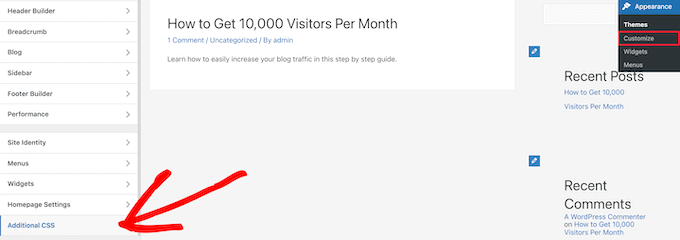
This lets you add custom CSS code directly to your WordPress theme and see the live changes.
Here is some sample CSS code to help you get started:
| 1234567891011121314151617 | .author_bio_section{background-color: #F5F5F5;padding: 15px;border: 1pxsolid#ccc;}.author_name{font-size:16px;font-weight: bold;}.author_details img {border: 1pxsolid#D8D8D8;border-radius: 50%;float: left;margin: 010px10px0;} |
Hosted with ❤️ by WPCode
Next, add the code directly to the ‘Additional CSS’ box.
Then, click the ‘Publish’ button to make your changes live.
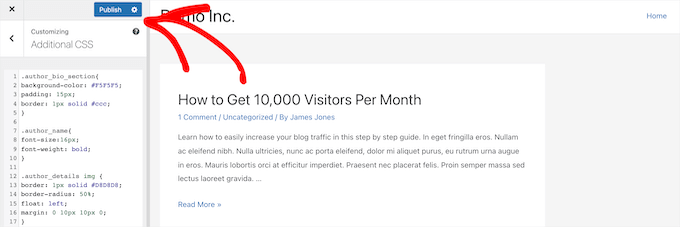
Now, you can visit one of your WordPress blog posts and see your new author info box.
Here is how the author bio box looked on our theme.

We hope this article helped you learn how to add an author info box to WordPress posts. You may also want to see our guide on how to choose the best WordPress hosting and our expert picks of the best AI chatbots software for your website.