How to Create Custom Permalinks in WordPress (Ultimate Guide)

Do you want to create custom permalinks in WordPress for posts, pages, and other post types?
Recently one of our readers asked if it was possible to create their own custom permalinks, or page URL structure, in WordPress.
In this article, we will show you how to create custom permalinks in WordPress without affecting your SEO.
Since this is a comprehensive tutorial on creating custom permalinks in WordPress, we have created an easy-to-navigate table of contents:
- What Is a Custom Permalink in WordPress?
- How to Change the WordPress Permalink Structure
- How to Change the Category and Tag URL Prefix in WordPress
- How to Change an Individual WordPress Post or Page URL
- How to Change a WordPress Category or Tag URL
- How to Change an Author Page URL in WordPress
- How to Create Completely Custom Permalinks in WordPress
- How to Set Up Permalink Redirects and Avoid 404 Errors
What Is a Custom Permalink in WordPress?
Permalinks are the permanent URLs of your individual blog posts, pages, and other archive pages on your WordPress website.
The goal of your permalink is to create an easy-to-understand URL structure for both humans and search engines.
For example: https://example.com/best-refrigerators-for-tiny-kitchens/
This URL is much better than URLs from the old days, like: https://example.com/index.php?p=4556
WordPress provides website owners with multiple permalink options to choose from. You can view them by visiting the Settings » Permalinks page.
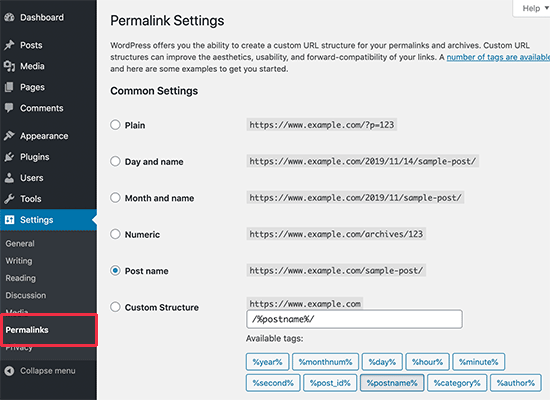
Aside from changing the main permalink structure, WordPress also offers ways to customize the individual URLs of posts, pages, categories, tags, and other areas of your blog.
You can also use WordPress plugins to create completely custom permalinks for specific sections of your website that override the default WordPress settings.
Let’s take a look at all the options one by one. We will start with the default built-in options that come with your WordPress website.
Video Tutorial
Subscribe to WPBeginner
https://www.youtube.com/subscribe_embed?usegapi=1&channel=wpbeginner&layout=default&count=default&origin=https%3A%2F%2Fwpbeginner.com&gsrc=3p&ic=1&jsh=m%3B%2F_%2Fscs%2Fapps-static%2F_%2Fjs%2Fk%3Doz.gapi.en.vQiXRrxCe40.O%2Fam%3DAQ%2Fd%3D1%2Frs%3DAGLTcCMBxIGVyXSdvvcs43a64yHt_P7dfg%2Fm%3D__features__#_methods=onPlusOne%2C_ready%2C_close%2C_open%2C_resizeMe%2C_renderstart%2Concircled%2Cdrefresh%2Cerefresh&id=I0_1448178294715&parent=https%3A%2F%2Fwpbeginner.com
If you don’t like the video or need more instructions, then continue reading.
How to Change the WordPress Permalink Structure
If you want to change the whole URL generation scheme for your website, then go to the Settings » Permalinks page in your WordPress admin dashboard.
Here, you can select a URL structure for your individual posts. You can also use the tags shown on the screen to create a custom structure for your WordPress URLs.
For example, you might use the post’s title (%postname%) and category (%category%), plus the year (%year%) when it was published.
Don’t forget to click on the ‘Save Changes’ button at the bottom of the page to store your changes.
We recommend using a URL structure that includes the post name in the URL. This makes your URLs more user-friendly and can improve your WordPress SEO.
Make sure you use SEO-friendly permalinks like this when you create a new WordPress blog or website.
However, if you have an existing website that’s already getting traffic from search engines, then changing permalinks can affect your SEO rankings.
How to Change the Category and Tag URL Prefix in WordPress
By default, WordPress uses /category/ as the base for your category URLs and /tag/ for the tags pages.
Just like the examples below:
https://example.com/category/technology/https://example.com/tag/fintech/
You can change these base prefixes by going to Settings » Permalinks and simply entering new prefixes.
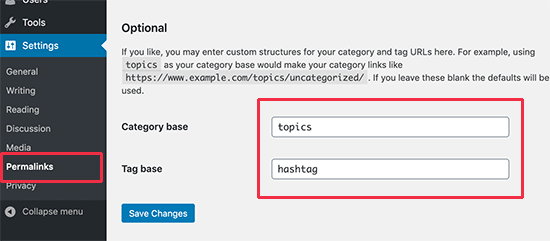
Make sure you click the ‘Save Changes’ button to update your category base and tag base.
Now, you will have a new category and tag bases active on your website, like these:
https://example.com/topics/technology/ (for category pages)https://example.com/hashtag/fintech (for tag pages)
How to Change an Individual WordPress Post or Page URL
Once you have your initial permalink structure setup, WordPress will use that as a template for all the links on your site.
However, you can also change the URL slug inside the URL structure for individual posts, pages, and custom post types, to make it more SEO-friendly.
You can customize the slug part of the URL from the post edit screen inside the WordPress content editor.
If you’re creating a new post or page, you will need to click ‘Publish’ or ‘Update’ to save your draft first.
After that, simply click on ‘URL Slug’ in the Permalink meta box.

Then change the URL slug to a custom permalink.
Once you are done, click on the ‘Update’ button to save the new permalink.
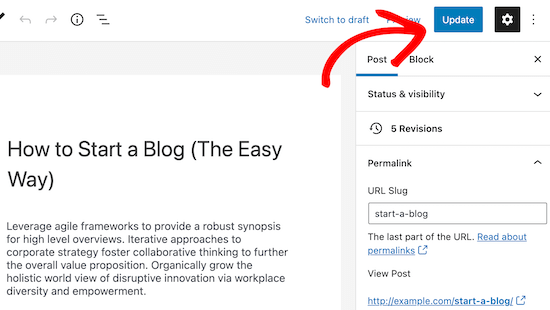
You can use this method for all post types, including WooCommerce products, membership sites, online courses, and more.
How to Change a WordPress Category or Tag URL
In the earlier step, we showed you how to modify the category and tag base prefix in WordPress. In this step, we will show you how to change the URL keywords for an individual category or tag.
Simply go to Posts » Categories and click on the ‘Edit’ link below the category you want to customize.
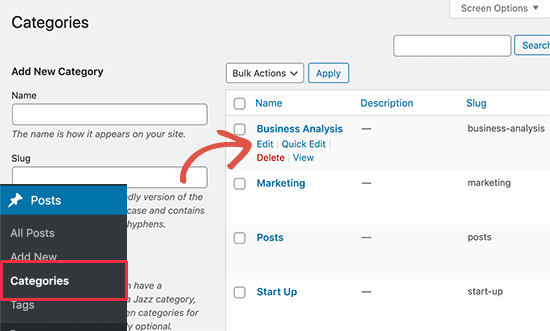
WordPress will now load the category details.
From here, you can change the category slug to customize its permalink.
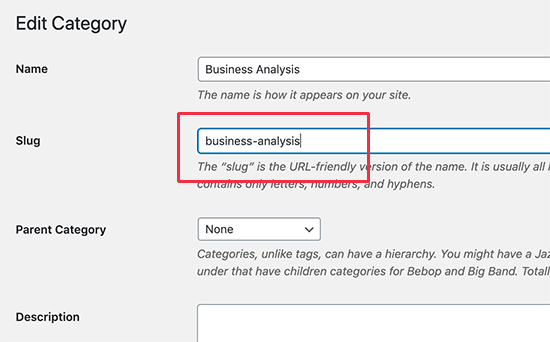
Make sure to click the ‘Update’ button to save your category slug changes.
Similarly, you can edit an individual tag by going to the Posts » Tags screen and following the same steps.
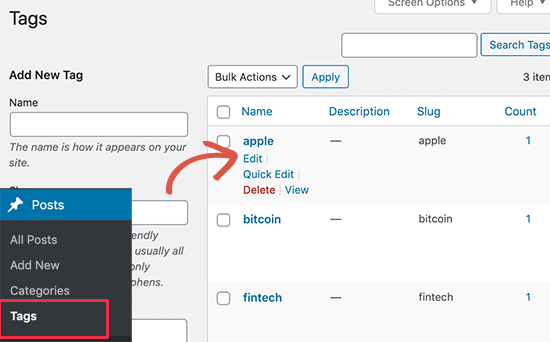
You can also edit any custom taxonomies using the same method as above.
How to Change an Author Page URL in WordPress
WordPress will automatically create an author page URL for the different authors on your website.
It looks like this: https://example.com/author/jsmith/
In the example above, jsmith is the slug and author is the base.
The issue is that WordPress doesn’t come with an option to change the author URL base or the slug.
Luckily, you can change this in a couple of clicks by using a WordPress plugin.
The first thing you need to do is install and activate the Edit Author Slug plugin. For details, see our step-by-step guide on how to install a WordPress plugin.
Upon activation, go to the Users » All Users page. Next, click on the ‘Edit’ link below the username.
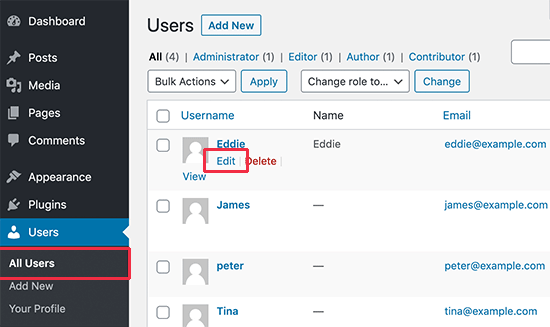
On the next page, scroll down to the ‘Edit Author Slug’ section.
Here, you will be able to choose an author slug or add your own in the ‘Custom’ box.
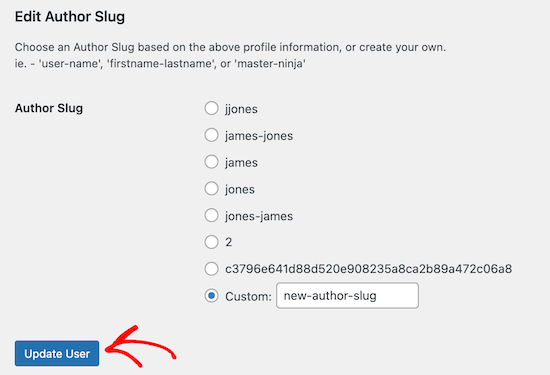
Don’t forget to click the ‘Update User’ button to store your settings.
If you want to change the author permalink base, then simply go to Settings » Edit Author Slug.
Here, you will see an option to change the author base and even choose different author bases for users with different user roles.
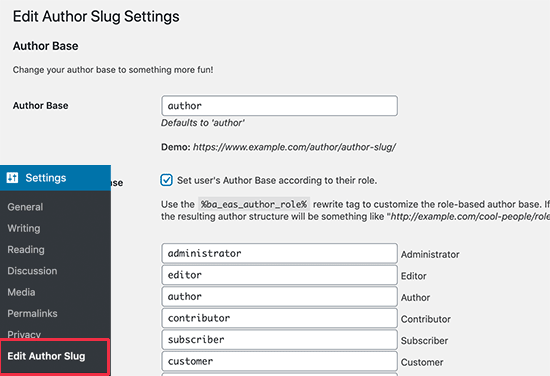
For more details, see our guide on how to change the author URL slug and base in WordPress.
How to Create Completely Custom Permalinks in WordPress
All the above methods allow you to customize WordPress permalinks to a certain extent. However, they cannot help you create completely custom permalinks.
That’s because WordPress doesn’t offer this functionality by default.
Luckily, there’s a plugin that can help. If you want to override the default WordPress URL structure for specific sections on your site, then this is for you.
The first thing you need to do is install and activate the Custom Permalinks plugin. For more details, see our beginner’s guide on how to install a WordPress plugin.
Upon activation, you need to open up the post where you want to create a custom permalink.
Then, instead of editing the permalink as above, you will find the option to create a custom permalink below the editor in the ‘Custom Permalink’ box.
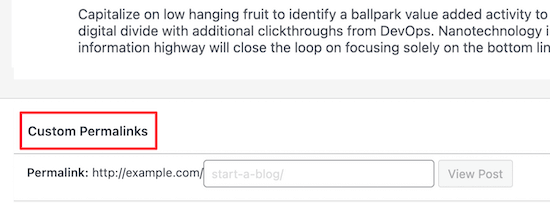
Similarly, you can also create custom permalinks for categories.
To do this, go to the Posts » Categories page and click on the ‘Edit’ link below the category that you want to change.
On the category details page, you will find the option to create a custom permalink for that particular category.
You can even create a URL without the category base prefix.
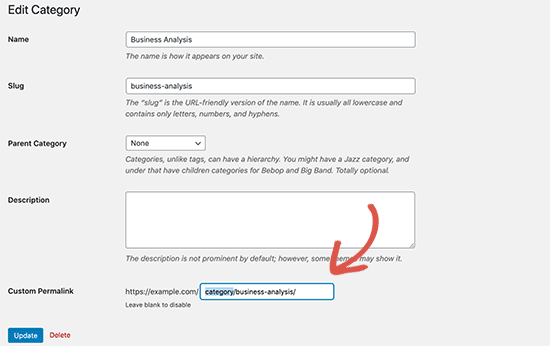
You can manage and disable all your custom permalinks by navigating to Custom Permalinks » Post Type Permalinks in the admin sidebar.
Simply select the custom permalinks you want to delete and then click on the ‘Bulk Actions’ drop-down to select the ‘Delete permalinks’ option.
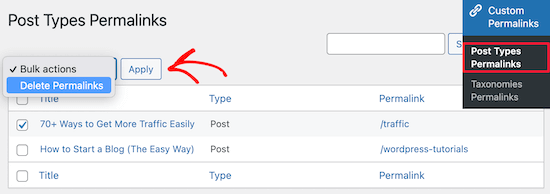
After that, click on the ‘Apply’ button, and the plugin will remove those custom permalinks. The deleted permalink will be replaced by your default WordPress permalink scheme.
You can also use the plugin to manage and bulk delete your taxonomy permalinks by going to Custom Permalinks » Taxonomies Permalinks and following the same steps.
How to Set Up Permalink Redirects and Avoid 404 Errors
If you have made changes to your permalink structure or author slug, or created completely custom permalinks, then there’s a chance you could run into 404 errors.
To fix this, you need to set up permalink redirects from your old to new permalinks to avoid these errors.
The easiest way to do this is by using the All in One SEO plugin. It’s the best WordPress SEO plugin used by over 3 million websites to improve their SEO.
It has a powerful redirection manager addon that lets you manage 301 redirects for your permalinks, keep track of and fix 404 errors, and more.
For more details on setting up permalink redirects, see our beginner’s guide to creating 301 redirects in WordPress.
Upon activation, you can manage and create new permalink redirects directly from your WordPress dashboard.
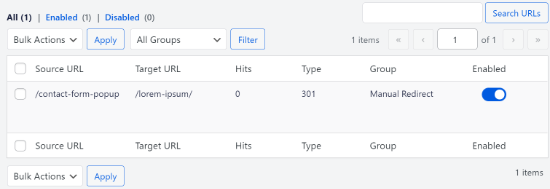
Aside from that, AIOSEO also helps you track 404 error pages and fix them. If you happen to miss some redirects, then this can help you find and fix them later easily.
We hope this article helped you learn how to create custom permalinks in WordPress. You may also want to see our guide to choosing the best blogging platform and our expert picks for the best virtual business phone number apps.