How to Fix WordPress RSS Feed Errors (Step-by-Step Tutorial)

Are you seeing RSS feed errors on your WordPress site?
RSS feeds help users subscribe to your blog using news reader apps like Feedly. However, since RSS feeds are published in the XML markup language, a tiny mistake in the feed can make it unreadable, and users will not be able to see new content in their news feeds.
Other apps also rely on getting content updates from your WordPress RSS feed. For example, if you use IFTTT to automate social sharing of your new posts, then that will stop working as well.
In this article, we will show you how to easily fix RSS feed errors in WordPress. We will also talk about what causes those errors and how to avoid them in the future.
Most Common WordPress RSS Feed Errors
Most common WordPress RSS feed errors are caused by poor formatting.
WordPress outputs RSS feeds in XML, which is a strict markup language. A missing line break or an extra tab can break the RSS feed on your WordPress blog.
The RSS error message will look something like this:
XML Parsing Error: XML or text declaration not at start of entity
Location: http://example.com/feed
Line Number 2, Column 1:
Depending on which browser you are using, your RSS feed error message may vary.
You can also see this error message when visiting your feed in a browser.
Warning: Cannot modify header information – headers already sent by (output started at /home/username/example.com/wp-content/themes/twentysixteen/functions.php:433) in /home/username/example.com/wp-includes/pluggable.php on line 1228
If you are using FeedBurner, then your errors may look different.
Having said that, let’s look at what causes these RSS feed errors and how to fix them.
Manually Fixing RSS Feed Errors in WordPress
Poor formatting is the most likely reason your RSS feeds show errors. This poor formatting can be caused by a blank space after the closing PHP tag in a plugin or your theme’s functions.php file.
If you recently added a code snippet to your theme or child theme‘s functions.php file, then you need to edit your functions file.
If there is a closing PHP tag at the end of your functions file, then you need to make sure that there is no extra space or line breaks after it.
Ideally, the closing PHP tag is not required at the end of the file. This is why it is best to remove the closing PHP tag altogether.
We also recommend using WPCode for inserting code snippets in the future. This plugin enables you to insert code snippets into your website without editing your functions.php file. Plus, its smart code validation will help prevent common code errors that could break your site.
For more details, please see our guide on how to easily add custom code in WordPress.
This should fix the problem in most cases. However, if it does not fix your RSS feed error, then continue reading.
Disable RSS Feed Related Plugins
If you are using a WordPress plugin that modifies your website’s RSS feed or creates a new one, then you need to disable that plugin.
If you are unsure, then you can temporarily disable all WordPress plugins.
Simply head to Plugins » Installed Plugins in your WordPress admin dashboard. Then, check the box in the top left corner of the plugins list and choose ‘Deactivate’ from the ‘Bulk actions’ dropdown.
Finally, you will need to click on ‘Apply’.
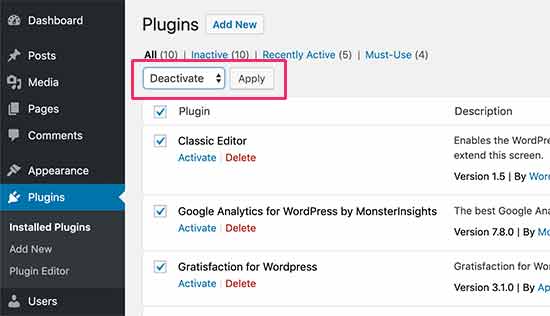
Next, check your RSS feed for the error. If the error disappears, then one of the plugins installed on your WordPress website was the culprit.
You can now reactivate your installed plugins one by one and check your RSS feed after activating each plugin. This way, you can find out exactly which plugin is causing the issue.
Once you have located the plugin, you can contact the plugin’s support for an update or find an alternative plugin that does the same thing.
Check out our top picks for the best WordPress RSS feed plugins to find a suitable alternative.
Temporarily Switch to a Default Theme
Occasionally, a poorly-coded WordPress theme function can also affect your WordPress RSS feed. To see if the problem is caused by your WordPress theme, you need to temporarily switch to a default WordPress theme.
Simply go to the Appearance » Themes page, and if you already have a default theme installed, then activate it.
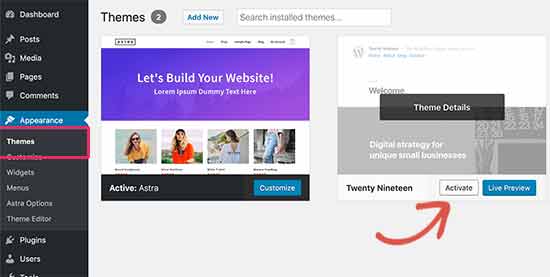
Default themes include Twenty Twenty-Three, Twenty Twenty-Two, and so on.
If you don’t have one installed on your website, then you can click on the ‘Add New’ button to install and activate it. See our guide on how to install a WordPress theme for step-by-step instructions.
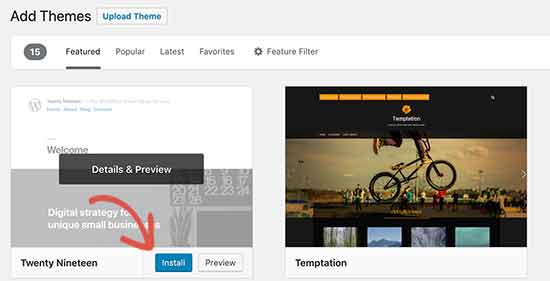
After switching to the default theme, check your WordPress feed for errors. You can visit your feed in a browser window or test it with a feed validator tool.
If the error disappears, then this means your WordPress theme was causing the issue. You can contact the theme author for support or find a new WordPress theme for your website.
We hope this article helped you fix WordPress RSS feed errors on your site. You may also want to take a look at our guide on how to increase your website traffic and our expert picks for the best social media plugins for WordPress.