How to Add User Role Label Next to Comments in WordPress

One of our readers asked if it was possible to highlight user role next to each comment in WordPress?
Displaying user role label gives weight to comments made by registered users on your website specifically authors, editors, and admins.
In this article, we will show you how to easily add user role label next to comments in WordPress.
Why Show User Role Label Next to Comment Author Name in WordPress?
If you allow user registration on your website or run a multi-author WordPress website, then user labels can introduce users to each other based on their user roles.
For example, users with the editor user role will show a badge next to their name in comments letting other users know that this comment was made by an editor.
It builds up user trust and increases user engagement in comments on your website.
Many WordPress themes only highlight comments made by post author. They don’t show labels for any other user roles even if other comments are made by registered users or site administrators.
That being said, let’s take a look at how to easily add user role label next to comments in WordPress.
Adding User Role Label Next to Comment Author Name in WordPress
This tutorial requires you to add code to your WordPress theme files. If you haven’t done this before, then please take a look at our guide on how to copy and paste code snippets in WordPress.
The first thing you need to do is add the following code to your theme’s functions.php file, in a site-specific plugin, or in a code snippets plugin.
| 1234567891011121314151617181920212223242526272829 | if( ! class_exists( 'WPB_Comment_Author_Role_Label') ) :classWPB_Comment_Author_Role_Label {publicfunction__construct() {add_filter( 'get_comment_author', array( $this, 'wpb_get_comment_author_role'), 10, 3 );add_filter( 'get_comment_author_link', array( $this, 'wpb_comment_author_role') );} // Get comment author role functionwpb_get_comment_author_role($author, $comment_id, $comment) { $authoremail= get_comment_author_email( $comment); // Check if user is registeredif(email_exists($authoremail)) {$commet_user_role= get_user_by( 'email', $authoremail);$comment_user_role= $commet_user_role->roles[0];// HTML output to add next to comment author name$this->comment_user_role = ' <span class="comment-author-label comment-author-label-'.$comment_user_role.'">'. ucfirst($comment_user_role) . '</span>';} else{ $this->comment_user_role = '';} return$author;} // Display comment author functionwpb_comment_author_role($author) { return$author.= $this->comment_user_role; } }newWPB_Comment_Author_Role_Label;endif; |
Hosted with ❤️ by WPCode
This function code above hooks into WordPress filters used to display comment author name to include user role label.
We recommend adding this code using WPCode, the best code snippets plugin for WordPress. It’s the safest and easiest way to add code without editing your theme’s functions.php file.
To get started, you need to install and activate the free WPCode plugin. For detailed instructions, see this tutorial on how to install a WordPress plugin.
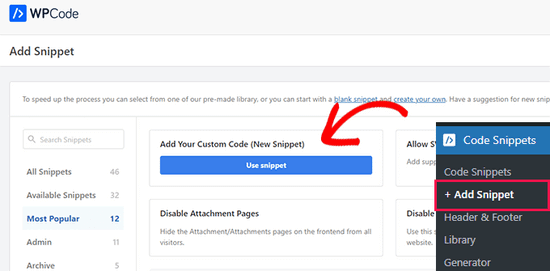
Once the plugin is activated, navigate to Code Snippets » + Add Snippet from the WordPress dashboard. From there, click the ‘Use Snippet’ button under the ‘Add Your Custom Code (New Snippet)’ option.
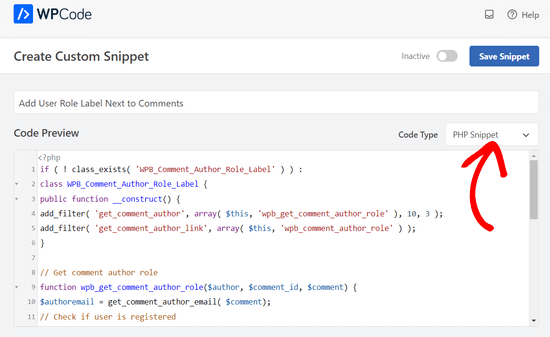
Next, add a title for your code snippet at the top of the page. This can be anything to help you remember what the code is for.
Then, paste the code from above into the ‘Code Preview’ box and select ‘PHP Snippet’ as the code type from the dropdown list on the right.
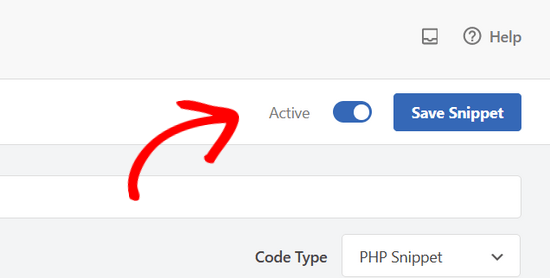
After that, simply move the switch from ‘Inactive’ to ‘Active’ and click on the ‘Save Snippet’ button.
You can now visit any post with comments to see it in action. Comments made by registered users will display their user role next to the comment author name. Any comment made by non-registered users will only display comment author name.
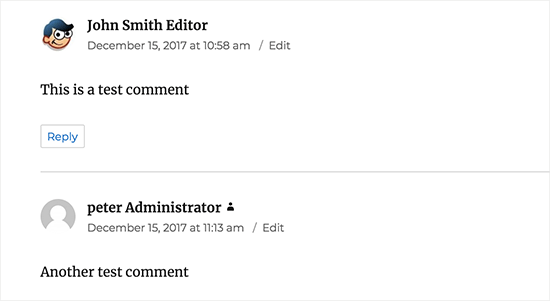
Now that we have added the user role, it’s time to style it and make it look clean.
In our code, we have added a CSS class for each user role, so we can use these CSS classes to customize each user badge differently (i.e use different colors, etc)
You can use the following sample CSS as an starting point:
| 1234567891011121314151617181920212223 | .comment-author-label { padding: 5px; font-size: 14px; border-radius: 3px;} .comment-author-label-editor { background-color:#efefef;}.comment-author-label-author {background-color:#faeeee;} .comment-author-label-contributor {background-color:#f0faee; }.comment-author-label-subscriber {background-color:#eef5fa; } .comment-author-label-administrator { background-color:#fde9ff;} |
Hosted with ❤️ by WPCode
Feel free to adjust the CSS to your liking. This is how it looked on our demo website:
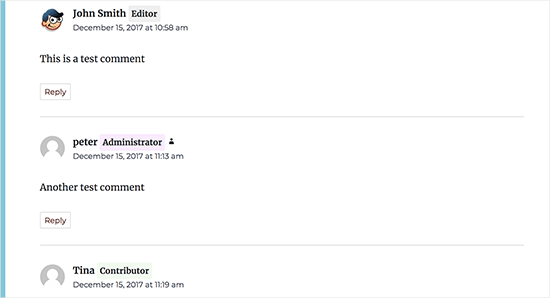
For more details, see our guide on how to easily add custom CSS to your WordPress site.
We hope this article helped you learn how to add user role label next to comments in WordPress. You may also want to see our guide on how to lazy load gravatars in WordPress comments and our expert picks of the best plugins to improve WordPress comments.