How to Deploy ComfyUI – AI Workflow Builder

How to Deploy ComfyUI – AI Workflow Builder
Host ComfyUI with Docker Compose and Traefik for secure, node-based AI image workflows.
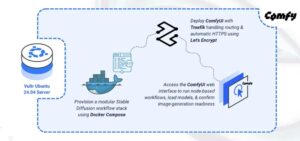
ComfyUI is an open-source node-based interface for Stable Diffusion that enables complex image generation workflows. It provides a visual graph editor where users connect nodes to build custom pipelines for text-to-image, image-to-image, and inpainting tasks. ComfyUI supports advanced features like ControlNet, LoRA models, and custom sampling methods while offering efficient memory management for generating high-resolution images.
In this article, you will deploy ComfyUI using Docker Compose, configure persistent storage for models and outputs, and set up Traefik as a reverse proxy to securely access your ComfyUI instance.
Prerequisites
Before you begin, you need to:
- Have access to an Ubuntu 24.04-based server as a non-root user with
sudoprivileges. - Install Docker and Docker Compose.
- Configure a domain A record pointing to your server’s IP address (for example,
comfyui.example.com).
Set Up the Directory Structure and Environment Variables
In this section, you prepare the required directory structure for ComfyUI and define environment variables in a .env file.
- Create the directory structure for ComfyUI.
console
$ mkdir -p ~/comfyui/{storage,models,output,input}
These directories store different types of data:
- storage: Contains ComfyUI application data, custom nodes, and cached files.
- models: Contains Stable Diffusion checkpoints, LoRA files, and ControlNet models.
- output: Stores generated images and workflow outputs.
- input: Holds reference images for img2img and inpainting workflows.
- Navigate into the
comfyuidirectory.console$ cd ~/comfyui
- Create a
.envfile.console$ nano .envAdd the following variables:
iniDOMAIN=comfyui.example.com LETSENCRYPT_EMAIL=admin@example.com
Replace:
comfyui.example.comwith your domain.admin@example.comwith your email.
Save and close the file.
Deploy with Docker Compose
In this section, you create and deploy the Docker Compose stack that runs ComfyUI behind Traefik. Docker Compose manages both containers, applies the environment variables from your .env file, and automatically configures HTTPS routing through Traefik.
- Create a new Docker Compose manifest.
console
$ nano docker-compose.yaml - Add the following content.
yaml
services:
  traefik:
    image: traefik:v3.6
    container_name: traefik
    command:
      - "--providers.docker=true"
      - "--providers.docker.exposedbydefault=false"
      - "--entrypoints.web.address=:80"
      - "--entrypoints.websecure.address=:443"
      - "--entrypoints.web.http.redirections.entrypoint.to=websecure"
      - "--entrypoints.web.http.redirections.entrypoint.scheme=https"
      - "--certificatesresolvers.letsencrypt.acme.httpchallenge=true"
      - "--certificatesresolvers.letsencrypt.acme.httpchallenge.entrypoint=web"
      - "--certificatesresolvers.letsencrypt.acme.email=${LETSENCRYPT_EMAIL}"
      - "--certificatesresolvers.letsencrypt.acme.storage=/letsencrypt/acme.json"
    ports:
      - "80:80"
      - "443:443"
    volumes:
      - "letsencrypt:/letsencrypt"
      - "/var/run/docker.sock:/var/run/docker.sock:ro"
    restart: unless-stopped

  comfyui:
    image: yanwk/comfyui-boot:cpu
    container_name: comfyui
    hostname: comfyui
    environment:
      - CLI_ARGS=--listen --cpu
    expose:
      - "8188"
    volumes:
      - "./storage:/root"
      - "./models:/root/ComfyUI/models"
      - "./output:/root/ComfyUI/output"
      - "./input:/root/ComfyUI/input"
    labels:
      - "traefik.enable=true"
      - "traefik.http.routers.comfyui.rule=Host(`${DOMAIN}`)"
      - "traefik.http.routers.comfyui.entrypoints=websecure"
      - "traefik.http.routers.comfyui.tls.certresolver=letsencrypt"
      - "traefik.http.services.comfyui.loadbalancer.server.port=8188"
    restart: unless-stopped

volumes:
  letsencrypt:
Save and close the file.
This manifest establishes:
- services: Two containers deliver the image generation platform:
- traefik: Processes incoming connections, provisions TLS certificates, and routes traffic to ComfyUI.
- comfyui: Executes the Stable Diffusion backend and serves the node-based workflow editor.
- image: ComfyUI CPU image includes the complete runtime environment for CPU-based inference.
- environment:
CLI_ARGS=--listen --cpuconfigures ComfyUI to accept connections from Traefik and forces CPU-only inference mode. - container_name: Consistent naming conventions streamline container management.
- command (Traefik): Activates Docker integration, configures dual-port listeners (80/443), enforces protocol redirection, and enables Let’s Encrypt certificate automation.
- ports (Traefik): Maps standard HTTP and HTTPS ports for external connectivity.
- expose (ComfyUI): Opens port 8188 within the container network for Traefik access.
- volumes:
- Bind mounts (
./storage,./models,./output,./input) preserve application data, model files, and generated images across restarts. - Named volume
letsencryptretains certificate data through service updates. - Docker socket grants Traefik read-only access for container discovery.
- Bind mounts (
- labels (ComfyUI): Traefik routing directives that enable proxying, specify hostname matching, attach SSL certificates, and define the backend port.
- restart: unless-stopped: Implements automatic recovery after failures or system reboots.
- services: Two containers deliver the image generation platform:
- Create and start the services.
console
$ docker compose up -d - Verify that the services are running.
console
$ docker compose psOutput:
NAME       IMAGE                       COMMAND                  SERVICE    CREATED          STATUS          PORTS
comfyui    yanwk/comfyui-boot:cpu      "bash /runner-script…"   comfyui    36 seconds ago   Up 35 seconds   8188/tcp
traefik    traefik:v3.6                "/entrypoint.sh --pr…"   traefik    36 seconds ago   Up 35 seconds   0.0.0.0:80->80/tcp, [::]:80->80/tcp, 0.0.0.0:443->443/tcp, [::]:443->443/tcp
Both containers are operational. ComfyUI processes image generation requests while Traefik manages connections on ports
80and443. - View the logs of the services.
console
$ docker compose logsFor more information on managing a Docker Compose stack, see the How To Use Docker Compose article.
Access ComfyUI
This section shows how to access the ComfyUI interface and configure models for image generation workflows.
- Open the ComfyUI interface in your browser.
https://comfyui.example.com - The node-based workflow editor displays with a default text-to-image workflow. Explore the main interface components:
- Canvas: The central workspace where you build and connect nodes.
- Node Menu: Right-click the canvas to access available nodes for sampling, conditioning, and image processing.
- Queue: The sidebar shows pending and completed generation tasks.
- To generate images, download Stable Diffusion model files (
.safetensorsor.ckpt) from sources like Civitai or Hugging Face and place them in the~/comfyui/models/checkpointsdirectory. - Build workflows by right-clicking the canvas to add nodes, then connect them by dragging from output to input sockets. Click Run to execute the workflow.
Conclusion
You have successfully deployed ComfyUI for AI image generation with HTTPS encryption. The Docker Compose configuration unites the Stable Diffusion interface with automated SSL management, while persistent volumes maintain your model library and generated artwork. Traefik handles certificate provisioning and secure request routing. Your ComfyUI instance is ready to execute complex generation workflows, experiment with various models and techniques, and produce high-quality AI-generated images through its intuitive node-based editor.