How to Deploy Gogs – Simple Git Hosting

How to Deploy Gogs – Simple Git Hosting
Deploy Gogs with Docker Compose and Traefik for secure, lightweight self-hosted Git hosting.
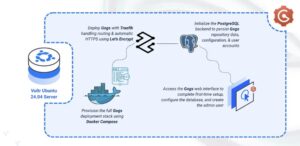
Gogs (Go Git Service) is a lightweight, self-hosted Git server designed to be fast, simple, and easy to deploy. It provides repository hosting, SSH/HTTPS support, issues, user management, and a clean web interface similar to Gitea or GitHub.
This article demonstrates how to deploy Gogs on Ubuntu 24.04 using Docker Compose and secure it behind a Traefik reverse proxy for automatic HTTPS.
Prerequisites
Before you begin:
- Have access to an Ubuntu 24.04 server as a non-root user with sudo privileges.
- Install Docker and Docker Compose on your server.
- Configure a domain name, for example
gogs.example.com, pointing to your server’s public IP.
Set Up the Directory Structure and Environment Variables
Set up directories for persistent Gogs data, database files, and Let’s Encrypt certificates.
- Create the folder structure.
console
$ mkdir -p ~/gogs/{data,db,letsencrypt}
data– Stores Gogs repositories, configs, SSH keysdb– PostgreSQL dataletsencrypt– Stores Traefik ACME certificates
- Move into the project folder.
console
$ cd ~/gogs
- Create a
.envfile to store variables used in Docker Compose.console$ nano .envAdd the following:
iniPOSTGRES_USER=gogs POSTGRES_PASSWORD=STRONG_DB_PASSWORD POSTGRES_DB=gogs DOMAIN=gogs.example.com LETSENCRYPT_EMAIL=admin@example.com
Replace:
STRONG_DB_PASSWORDwith a secure passwordgogs.example.comwith your domainadmin@example.comwith your email
Save and close the file.
Deploy with Docker Compose
This section deploys Gogs using Docker Compose, Traefik for HTTPS, and PostgreSQL for storage.
- Add your user account to the docker user group.
console
$ sudo usermod -aG docker $USER
- Apply new group membership.
console
$ newgrp docker - Create and edit a Docker Compose manifest file.
console
$ nano docker-compose.yml - Add the following contents.
yaml
services:
  traefik:
    image: traefik:latest
    container_name: traefik
    restart: unless-stopped
    environment:
      DOCKER_API_VERSION: "1.44"
    command:
      - "--providers.docker=true"
      - "--providers.docker.exposedbydefault=false"
      - "--entrypoints.web.address=:80"
      - "--entrypoints.websecure.address=:443"
      - "--entrypoints.web.http.redirections.entrypoint.to=websecure"
      - "--entrypoints.web.http.redirections.entrypoint.scheme=https"
      - "--certificatesresolvers.le.acme.httpchallenge=true"
      - "--certificatesresolvers.le.acme.httpchallenge.entrypoint=web"
      - "--certificatesresolvers.le.acme.email=${LETSENCRYPT_EMAIL}"
      - "--certificatesresolvers.le.acme.storage=/letsencrypt/acme.json"
    ports:
      - "80:80"
      - "443:443"
    volumes:
      - /var/run/docker.sock:/var/run/docker.sock:ro
      - ./letsencrypt:/letsencrypt

  db:
    image: postgres:16-alpine
    container_name: gogs-db
    restart: unless-stopped
    environment:
      POSTGRES_USER: ${POSTGRES_USER}
      POSTGRES_PASSWORD: ${POSTGRES_PASSWORD}
      POSTGRES_DB: ${POSTGRES_DB}
    volumes:
      - ./db:/var/lib/postgresql/data

  gogs:
    image: gogs/gogs:latest
    container_name: gogs
    restart: unless-stopped
    depends_on:
      - db
    environment:
      - USER_UID=1000
      - USER_GID=1000
    volumes:
      - ./data:/data
    ports:
      - "2222:22"
    labels:
      - "traefik.enable=true"
      - "traefik.http.routers.gogs.rule=Host(`${DOMAIN}`)"
      - "traefik.http.routers.gogs.entrypoints=websecure"
      - "traefik.http.routers.gogs.tls=true"
      - "traefik.http.routers.gogs.tls.certresolver=le"
      - "traefik.http.services.gogs.loadbalancer.server.port=3000"
Save and close the file.
This Docker Compose file deploys Gogs behind Traefik, enabling secure HTTPS access using Let’s Encrypt. Each service has a specific purpose:
- traefik service
- Runs the Traefik reverse proxy in front of all services.
- Listens on ports 80 (HTTP) and 443 (HTTPS) on the host.
- Uses the Docker provider to automatically discover containers on the
traefik-publicnetwork via labels. - Forces HTTP traffic on port 80 to redirect to HTTPS on port 443.
- Uses the
leACME resolver with the email address from${LETSENCRYPT_EMAIL}to request and renew SSL certificates from Let’s Encrypt. - Stores ACME certificate data in the
./letsencryptdirectory (mounted as/letsencrypt). - Reads container metadata through the Docker socket (
/var/run/docker.sock) in read-only mode.
- db service (PostgreSQL)
- Runs a Postgres 16 database for Gogs.
- Uses environment variables
${POSTGRES_USER},${POSTGRES_PASSWORD}, and${POSTGRES_DB}(defined in your.envfile) to configure the database. - Stores all database files persistently in the
./dbdirectory on the host.
- gogs service
- Runs the Gogs Git server application.
- Depends on the
dbservice to ensure the database is started first. - Runs as UID/GID
1000inside the container (USER_UIDandUSER_GID) so file ownership lines up with your host user. - Stores repositories, SSH keys, and configuration under the
./datadirectory on the host. - Exposes port 22 from the container as port 2222 on the host for SSH Git access (
ssh -p 2222). - Registers itself with Traefik using labels:
traefik.http.routers.gogs.ruletells Traefik to route requests for your domain to this container.- Uses the
websecureentrypoint (HTTPS) with TLS enabled. - Uses the
lecertificate resolver to obtain certificates from Let’s Encrypt. - Tells Traefik to send traffic to container port 3000, where the Gogs web UI listens.
- traefik service
- Start All Services
console
$ docker compose up -d - Check that containers are running.
console
$ docker compose psYou should see
gogs,gogs-db, andtraefiklisted as “Up”.NoteFor more information on managing a Docker Compose stack, see the How To Use Docker Compose article.
Access and Configure Gogs
- Open your browser and visit your Gogs domain
https://gogs.example.com. The Install Steps For First-time Run page loads.
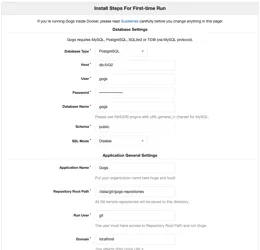
2.Fill in required fields:
-
- Host:
db:5432 - User and Password: Enter the values you set in
.env - Application URL:
https://gogs.example.com/ - SSH Port:
2222, or the host port value you set in thegogs.portsfield.3.Scroll down to the Optional Settings section, and expand the Admin Account Settings.
Set the credentials for an administrator account
- Host:
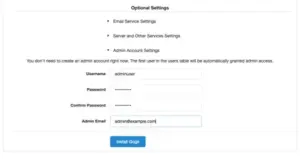
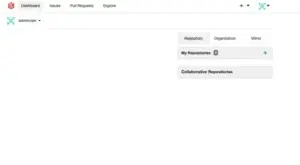
4.Click Install Gogs. After installation, Gogs dashboard opens. You now have a fully functional Gogs instance secured with HTTPS.
Conclusion
By following this article, you successfully deployed Gogs on Ubuntu 24.04 using Docker Compose and secured it with Traefik. Your Git service now supports HTTPS, repository hosting, SSH access, and user management. For more information, visit the official Gogs documentation.