How to Deploy Infisical – Secrets Management Platform

How to Deploy Infisical – Secrets Management Platform
Set up a production-ready Infisical secrets manager using Docker Compose and Traefik TLS.
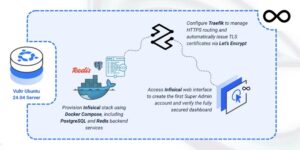
Infisical is an open-source, end-to-end encrypted secret management platform. It is often viewed as a more developer-friendly alternative to HashiCorp Vault, featuring a modern dashboard, SDKs for every major programming language, and native integrations with platforms such as Vercel, AWS, and GitHub.
This article demonstrates how to deploy a production-ready Infisical instance on Ubuntu 24.04 using Docker Compose. The stack includes PostgreSQL for data storage, Redis for caching, and Traefik for automatic HTTPS termination.
Prerequisites
Before you begin:
- Have access to an Ubuntu 24.04 server as a non-root user with sudo privileges.
- Install Docker and Docker Compose.
- Configure a domain name, such as
infisical.example.com, to point to your server’s public IP address.
Set Up the Directory Structure and Environment Variables
Infisical requires persistent storage for its database, cache, and certificates, along with several environment variables that define how the service operates. This section creates the necessary directory structure and prepares the .env file, including the required encryption keys.
- Create the project folders.
console
$ mkdir -p ~/infisical/{db,redis,letsencrypt}
db– Persistent storage for PostgreSQL (users, encrypted secrets).redis– Persistent storage for the Redis queue.letsencrypt– Traefik ACME certificates.
- Navigate to the root Infisical directory.
console
$ cd ~/infisical
- Generate a random Encryption Key (128-bit, hex-encoded).
console
$ openssl rand -hex 16
Copy the output and save it for the
ENCRYPTION_KEYneeded in the next section. - Generate a random Auth Secret (256-bit, base64-encoded).
console
$ openssl rand -base64 32
Copy the output and save it for the
AUTH_SECRETneeded in the next section. - Create a file named
.envin the project directory.console$ nano .env - Add the following values. Paste the keys you generated in the previous step where indicated.
ini
INFISICAL_DOMAIN=infisical.example.com
LETSENCRYPT_EMAIL=admin@example.com

# Security Keys
ENCRYPTION_KEY=HEX_KEY_HERE
AUTH_SECRET=BASE64_SECRET_HERE

# Database Credentials
POSTGRES_USER=infisical
POSTGRES_PASSWORD=STRONG_DB_PASSWORD
POSTGRES_DB=infisicaldb

# Internal Connection Strings
DB_CONNECTION_URI=postgres://${POSTGRES_USER}:${POSTGRES_PASSWORD}@db:5432/${POSTGRES_DB}
REDIS_URL=redis://redis:6379
Replace:
infisical.example.comwith your domain.admin@example.comwith your email address.HEX_KEY_HEREwith the hex key generated earlier.BASE64_SECRET_HEREwith the base64 secret.STRONG_DB_PASSWORDwith a secure password.
Save and close the file.
Deploy with Docker Compose
This section defines the Docker Compose stack required to run Infisical. The deployment consists of three core components: Infisical itself, PostgreSQL, and Redis, along with Traefik for HTTPS termination. Each service is configured to run in its own container and communicate over a shared Docker network.
- Add your user account to the docker user group.
console
$ sudo usermod -aG docker $USER
- Apply new group membership.
console
$ newgrp docker - Create the Docker Compose manifest file.
console
$ nano docker-compose.yml - Add the following contents:
yaml
services:
  traefik:
    image: traefik:latest
    container_name: traefik
    restart: unless-stopped
    environment:
      DOCKER_API_VERSION: "1.44"
    command:
      - "--providers.docker=true"
      - "--providers.docker.exposedbydefault=false"
      - "--entrypoints.web.address=:80"
      - "--entrypoints.websecure.address=:443"
      - "--entrypoints.web.http.redirections.entrypoint.to=websecure"
      - "--entrypoints.web.http.redirections.entrypoint.scheme=https"
      - "--certificatesresolvers.le.acme.httpchallenge=true"
      - "--certificatesresolvers.le.acme.httpchallenge.entrypoint=web"
      - "--certificatesresolvers.le.acme.email=${LETSENCRYPT_EMAIL}"
      - "--certificatesresolvers.le.acme.storage=/letsencrypt/acme.json"
    ports:
      - "80:80"
      - "443:443"
    volumes:
      - /var/run/docker.sock:/var/run/docker.sock:ro
      - ./letsencrypt:/letsencrypt

  db:
    image: postgres:16-alpine
    container_name: infisical-db
    restart: unless-stopped
    environment:
      POSTGRES_USER: ${POSTGRES_USER}
      POSTGRES_PASSWORD: ${POSTGRES_PASSWORD}
      POSTGRES_DB: ${POSTGRES_DB}
    volumes:
      - ./db:/var/lib/postgresql/data

  redis:
    image: redis:alpine
    container_name: infisical-redis
    restart: unless-stopped
    environment:
      - ALLOW_EMPTY_PASSWORD=yes
    volumes:
      - ./redis:/data

  infisical:
    image: infisical/infisical:latest-postgres
    container_name: infisical
    restart: unless-stopped
    depends_on:
      - db
      - redis
    environment:
      - ENCRYPTION_KEY=${ENCRYPTION_KEY}
      - AUTH_SECRET=${AUTH_SECRET}
      - DB_CONNECTION_URI=${DB_CONNECTION_URI}
      - REDIS_URL=${REDIS_URL}
      - TELEMETRY_ENABLED=false
    labels:
      - "traefik.enable=true"
      - "traefik.http.routers.infisical.rule=Host(`${INFISICAL_DOMAIN}`)"
      - "traefik.http.routers.infisical.entrypoints=websecure"
      - "traefik.http.routers.infisical.tls=true"
      - "traefik.http.routers.infisical.tls.certresolver=le"
      - "traefik.http.services.infisical.loadbalancer.server.port=8080"
Save and close the file. This Docker Compose configuration deploys Infisical, PostgreSQL, and Redis, with Traefik handling HTTPS routing and certificate management. Each service in the stack plays a specific role:
infisical service
- Runs the main Infisical application using the
infisical/infisicalimage. - Loads encryption keys, authentication secrets, and database/cache connection URIs from the
.envfile. - Connects to the PostgreSQL (
db) and Redis (redis) services to store encrypted secrets and manage caching. - Includes Traefik labels that route external HTTPS traffic for your domain (
${INFISICAL_DOMAIN}) to the Infisical container over port 8080. - Disables telemetry collection when
TELEMETRY_ENABLED=falseis set.
db service (PostgreSQL)
- Runs PostgreSQL 16 using the lightweight
postgres:16-alpineimage. - Stores Infisical application data (organizations, secrets, users, audit logs) in the
./dbdirectory on the host. - Initializes the database using credentials defined in the
.envfile. - Joins the shared Traefik network so the Infisical container can access it.
redis service
- Runs Redis using the
redis:alpineimage, acting as a caching layer and message broker for Infisical. - Stores its in-memory persistence data in the
./redisfolder. - Redis authentication is disabled because the container is never exposed publicly and is only accessible through Docker’s internal network. This is the default and recommended configuration for Infisical.
- Provides the Redis endpoint referenced via
REDIS_URL=redis://redis:6379.
traefik service
- Terminates all external HTTPS traffic and acts as a reverse proxy for the Infisical web interface.
- Automatically obtains and renews TLS certificates from Let’s Encrypt through the ACME HTTP-01 challenge.
- Uses Docker labels to route requests for your Infisical domain to the correct container.
- Stores all ACME certificate data in the
./letsencryptdirectory. - Exposes ports 80 and 443 on the host while keeping internal service ports isolated.
- Runs the main Infisical application using the
- Start all services in detached mode.
console
$ docker compose up -d - Check the container status.
console
$ docker compose psWait a moment for
infisical-dbto initialize. Theinfisicalcontainer may restart once or twice during initial startup while waiting for PostgreSQL to complete initialization.NoteFor more information on managing a Docker Compose stack, see the How To Use Docker Compose article.
Initialize Infisical
Once the containers are running, you must set up your first administrator account.
- Open your browser and visit your domain
https://infisical.example.com. You should see a welcome page prompting you to create your first Super Admin Account.
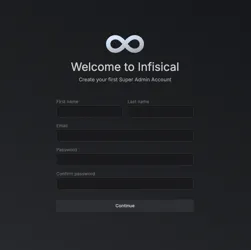
2.Enter your First name, last name, email, and a strong password to create the initial administrative user. Click Continue to access your Infisical dashboard.
Conclusion
You have successfully deployed Infisical on Ubuntu 24.04. You now have a modern, end-to-end encrypted platform for managing secrets across your development teams and infrastructure. For more information, refer to the Infisical documentation.