How to Deploy Passbolt – Team Password Manager

How to Deploy Passbolt – Team Password Manager
Passbolt is an open-source password manager designed for collaboration. Passbolt focuses on team sharing, utilizing OpenPGP for end-to-end encryption. It features a robust API, rigorous security standards, and a browser-based extension interface.
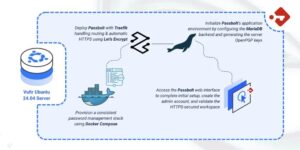
This article demonstrates how to deploy Passbolt Community Edition on Ubuntu 24.04 using Docker Compose. The stack includes MariaDB for data storage and Traefik for automatic HTTPS termination.
Prerequisites
Before you begin:
- Have access to an Ubuntu 24.04 server as a non-root user with sudo privileges.
- Install Docker and Docker Compose.
- Configure a domain name, such as
passbolt.example.com, to point to your server’s public IP address.
Set Up the Directory Structure and Environment Variables
Passbolt requires persistent storage for its database, GPG keys, and TLS certificates, as well as several environment variables that define its domain and database credentials. Because the official Passbolt container runs as the internal user www-data (UID 33), the directory structure must be created with the correct ownership so the container can generate and store GPG keys without permission errors. This section prepares the required folders and creates the .env file that Docker Compose uses to load configuration values automatically.
- Create the project folders.
console
$ mkdir -p ~/passbolt/{db,gpg,letsencrypt}
db– Persistent storage for the MariaDB database.gpg– Stores the server’s private PGP keys.letsencrypt– Traefik ACME certificates.
- Change the ownership of the
gpgdirectory to User ID 33. The Passbolt container runs internally as user ID 33 (www-data). This command grants the container permission to write to the folder, allowing it to generate and save the server’s GPG keys.console$ sudo chown -R 33:33 ~/passbolt/gpg
- Navigate to the root Passbolt directory.
console
$ cd ~/passbolt
Configure Environment Variables
Passbolt requires several environment variables to define its domain, database credentials, and email address for certificate management. These values are stored in an .env file, so Docker Compose can load them automatically during deployment.
- Create a file named
.envin the project directory.console$ nano .env - Add the following values:
ini
DOMAIN=passbolt.example.com
LETSENCRYPT_EMAIL=admin@example.com

MYSQL_USER=passbolt
MYSQL_PASSWORD=STRONG_DB_PASSWORD
MYSQL_DATABASE=passbolt
Replace
passbolt.example.comwith your domain andSTRONG_DB_PASSWORDwith a secure password. Save and close the file.
Deploy with Docker Compose
This section sets up the full Passbolt deployment using Docker Compose. The stack includes three services: Traefik for HTTPS termination, MariaDB for persistent data storage, and Passbolt for the main password management application. All services run in isolated containers and communicate over a shared Docker network.
- Add your user account to the docker user group.
console
$ sudo usermod -aG docker $USER
- Apply new group membership.
console
$ newgrp docker - Create the Docker Compose manifest file.
console
$ nano docker-compose.yml - Add the following contents:
yaml
services:
  traefik:
    image: traefik:latest
    container_name: traefik
    restart: unless-stopped
    environment:
      DOCKER_API_VERSION: "1.44"
    command:
      - "--providers.docker=true"
      - "--providers.docker.exposedbydefault=false"
      - "--entrypoints.web.address=:80"
      - "--entrypoints.websecure.address=:443"
      - "--entrypoints.web.http.redirections.entrypoint.to=websecure"
      - "--entrypoints.web.http.redirections.entrypoint.scheme=https"
      - "--certificatesresolvers.le.acme.httpchallenge=true"
      - "--certificatesresolvers.le.acme.httpchallenge.entrypoint=web"
      - "--certificatesresolvers.le.acme.email=${LETSENCRYPT_EMAIL}"
      - "--certificatesresolvers.le.acme.storage=/letsencrypt/acme.json"
    ports:
      - "80:80"
      - "443:443"
    volumes:
      - /var/run/docker.sock:/var/run/docker.sock:ro
      - ./letsencrypt:/letsencrypt

  db:
    image: mariadb:10.11
    container_name: passbolt-db
    restart: unless-stopped
    environment:
      MYSQL_USER: ${MYSQL_USER}
      MYSQL_PASSWORD: ${MYSQL_PASSWORD}
      MYSQL_DATABASE: ${MYSQL_DATABASE}
      MYSQL_RANDOM_ROOT_PASSWORD: "true"
    volumes:
      - ./db:/var/lib/mysql
    healthcheck:
      test: ["CMD", "mysqladmin", "ping", "--silent"]
      interval: 3s
      retries: 10
      start_period: 30s

  passbolt:
    image: passbolt/passbolt:latest
    container_name: passbolt
    restart: unless-stopped
    depends_on:
      db:
        condition: service_healthy
    environment:
      APP_FULL_BASE_URL: https://${DOMAIN}
      DATASOURCES_DEFAULT_HOST: db
      DATASOURCES_DEFAULT_USERNAME: ${MYSQL_USER}
      DATASOURCES_DEFAULT_PASSWORD: ${MYSQL_PASSWORD}
      DATASOURCES_DEFAULT_DATABASE: ${MYSQL_DATABASE}
    volumes:
      - ./gpg:/etc/passbolt/gpg
    labels:
      - "traefik.enable=true"
      - "traefik.http.routers.passbolt.rule=Host(`${DOMAIN}`)"
      - "traefik.http.routers.passbolt.entrypoints=websecure"
      - "traefik.http.routers.passbolt.tls=true"
      - "traefik.http.routers.passbolt.tls.certresolver=le"
      - "traefik.http.services.passbolt.loadbalancer.server.port=80"
Save and close the file. This Docker Compose configuration deploys Passbolt, using MariaDB for storage and Traefik for HTTPS termination. Each service plays a distinct role in the deployment:
passbolt service
- Runs the main Passbolt application using the official
passbolt/passboltimage. - Connects to the MariaDB database using the credentials defined in the
.envfile. - Reads the
APP_FULL_BASE_URLvariable to correctly generate all application URLs. - Uses a persistent GPG directory (
./gpg) to store Passbolt’s server-side encryption keys. - Registers HTTP routing rules with Traefik to serve the application securely over HTTPS at your configured domain (
${DOMAIN}). - Exposes port 80 internally, while Traefik handles external HTTPS traffic on port 443.
- Waits for MariaDB to be healthy before starting, preventing database connection errors during migrations.
db service (MariaDB)
- Runs MariaDB 10.11, the officially supported database backend for Passbolt.
- Initializes the Passbolt database using the username, password, and schema defined in the
.envfile. - Stores database files in the
./dbdirectory for persistence across container restarts. - Uses
MYSQL_RANDOM_ROOT_PASSWORD=trueto automatically generate a secure root password. - Includes a healthcheck that runs
mysqladmin pingto verify database readiness.
traefik service
- Listens on ports 80 and 443 to handle all incoming traffic.
- Automatically provisions and renews TLS certificates via Let’s Encrypt using the ACME HTTP-01 challenge.
- Reads Docker labels from the Passbolt container to determine routing rules.
- Redirects all HTTP requests to HTTPS for secure access.
- Stores generated certificates in the
./letsencryptdirectory.
- Runs the main Passbolt application using the official
- Start all services in detached mode.
console
$ docker compose up -d - Check the container status.
console
$ docker compose psNoteFor more information on managing a Docker Compose stack, see the How To Use Docker Compose article.
Create the First Administrator
Passbolt does not ship with a default login. You must manually register the first user via the command line to generate an invite link.
- Execute the following command to register the first user. Replace
admin@example.com,FIRSTNAME, andLASTNAMEwith your details.console$ docker compose exec passbolt su -m -c "/usr/share/php/passbolt/bin/cake passbolt register_user -u admin@example.com -f FIRSTNAME -l LASTNAME -r admin" -s /bin/sh www-data
Sample output:
... User saved successfully. To start registration follow the link provided in your mailbox or here: https://passbolt.example.com/setup/start/bbfa49fc-ac2e... - The output of the last step contains a link. Copy the full URL provided in the terminal and paste it into your web browser to initiate the user registration process.
- Passbolt detects your browser and prompts you to install the official extension. This is mandatory for local encryption. Install the extension.
- After you install the extension, the page refreshes and detects the extention. Click Next.
- Enter a strong passphrase. Click Next.
- Check the I safely stored my recovery kit. option and click Next.
- Choose the security token and color. Click Next.
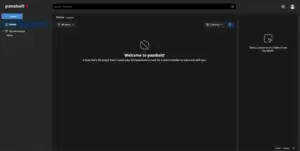
- The Passbolt dashboard loads.
Conclusion
You have successfully deployed Passbolt on Ubuntu 24.04. You now have a secure, team-oriented password manager running with OpenPGP encryption. For more information, refer to the Passbolt documentation.