How to Fix WordPress Login Page Refreshing and Redirecting Issue

Does your WordPress login page keep refreshing and redirecting when you try to log in to your website?
This issue locks you out of the WordPress admin area, meaning you are unable to work on your website.
In this article, we will show you how to fix the WordPress login page refreshing and redirecting issue.
Note: If you want to try the advanced steps in this WordPress tutorial, then please create a backup of your site first. See our guide on how to manually create a WordPress database backup.
Video Tutorial
Subscribe to WPBeginner
https://www.youtube.com/subscribe_embed?usegapi=1&channel=wpbeginner&layout=default&count=default&origin=https%3A%2F%2Fwpbeginner.com&gsrc=3p&ic=1&jsh=m%3B%2F_%2Fscs%2Fapps-static%2F_%2Fjs%2Fk%3Doz.gapi.en.vQiXRrxCe40.O%2Fam%3DAQ%2Fd%3D1%2Frs%3DAGLTcCMBxIGVyXSdvvcs43a64yHt_P7dfg%2Fm%3D__features__#_methods=onPlusOne%2C_ready%2C_close%2C_open%2C_resizeMe%2C_renderstart%2Concircled%2Cdrefresh%2Cerefresh&id=I0_1448178294715&parent=https%3A%2F%2Fwpbeginner.com
If you don’t like the video or prefer the written version instead, then please continue reading.
What Causes the Login Page Refresh and Redirect Issue in WordPress?
Login issues can be caused by different errors, such as the error establishing database connection, internal server error, or the white screen of death. Another type of login error is when your WordPress login page keeps refreshing and redirecting back to the login screen.
Incorrect WordPress URL settings and failure to set login cookies are the most common reasons causing the login page redirect and refresh issue.
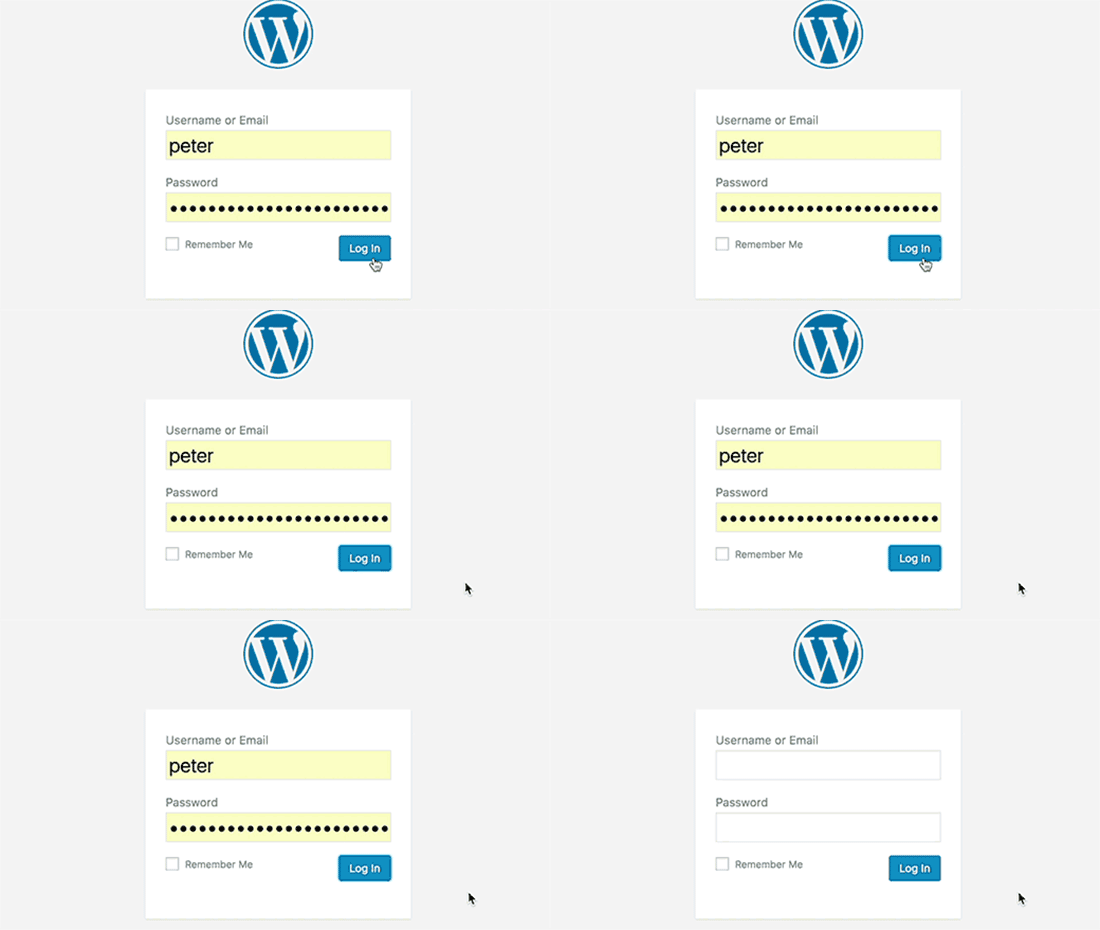
Normally, when you log in, WordPress validates your username and password and then sets a login cookie in your browser. After that, it redirects you to the WordPress admin area.
If WordPress fails to set the login cookie correctly or your WordPress admin area URL is incorrect, then you will be redirected back to the login page instead of the admin dashboard.
That being said, let’s troubleshoot and fix the WordPress login page redirect and refresh issue.
Clear Cookies to Resolve Login Issues
WordPress uses cookies for login authentication, so the first step in troubleshooting WordPress login issues is the simplest one. You will need to clear your browser cookies and cache.
In Google Chrome, simply click on the browser settings menu and then select More Tools » Clear Browsing Data.
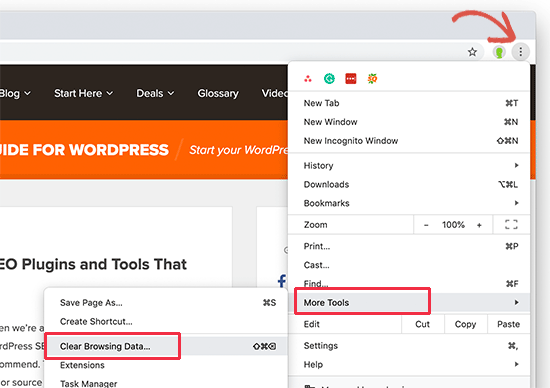
This will launch the Chrome Settings page with a ‘Clear Browsing Data’ popup displayed on the screen.
From here, you need to select the ‘Clear cookies and other site data’ and ‘Cached images and files’ options.
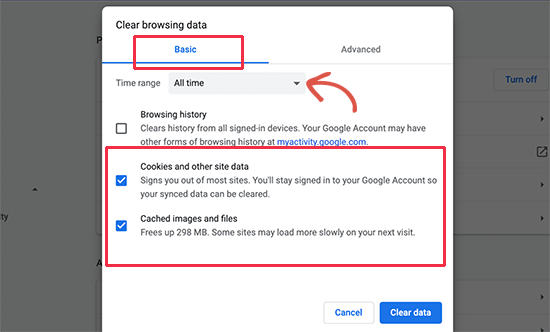
Next, click on the ‘Clear data’ button, and Google Chrome will clear the browser cache.
Also, make sure that your browser has cookies enabled. After doing that, restart your browser and then try to log in. This should fix the issue for most folks.
We have a complete guide with screenshots showing how to clear the cache and cookies in all major browsers.
Update WordPress URL Settings
WordPress comes with settings for the URL of your website and the URL of your WordPress installation.
If you had access to your WordPress admin area, then you could see this option on the Settings » General page.
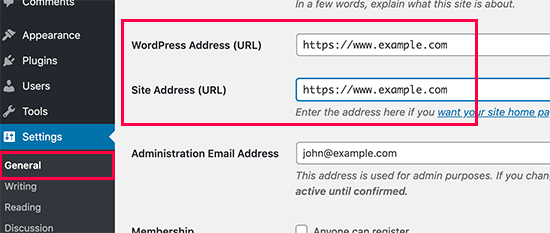
If these URLs are incorrect, then WordPress will redirect you back to the login page.
Since you are unable to access the WordPress admin area, you will need to edit the wp-config.php file to fix this issue.
The wp-config.php file is a special file in WordPress that contains your important WordPress settings. You can access it using an FTP client or via the File Manager app in your WordPress hosting account dashboard.
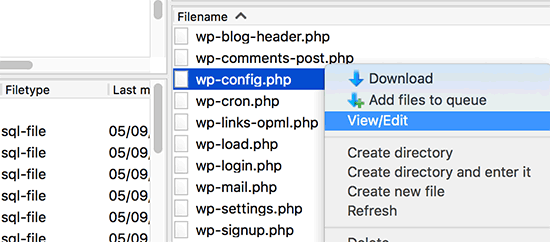
You will find the wp-config.php file in your site’s root folder. Simply edit the file and paste the following code just before the line that says, ‘That’s all, stop editing! Happy publishing’.
| 12 | define('WP_HOME','https://www.example.com');define('WP_SITEURL','https://www.example.com'); |
Hosted with ❤️ by WPCode
Don’t forget to replace ‘example.com’ with your own domain name.
After that, save your changes and upload the file back to your website.
You can now visit your WordPress website and try to log in. Hopefully, this will have fixed the issue for you. If it didn’t, then continue reading for additional troubleshooting steps.
Delete .htaccess File in WordPress
Sometimes .htaccess file can get corrupted, which can result in internal server errors or the login page refreshing error.
Simply access your website using an FTP client or via the File Manager app in your hosting account dashboard.
Once connected, locate the .htaccess file in the root folder of your website and download it to your computer as a backup.
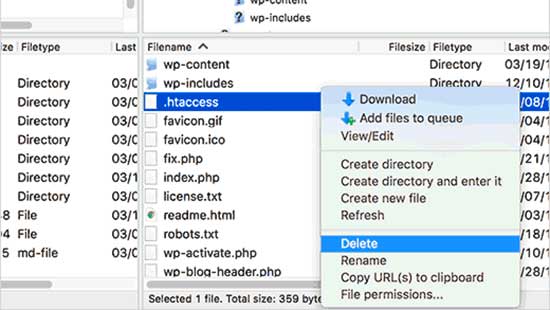
After that, go ahead and delete the .htaccess file from your website.
Next, open the wp-admin directory, and if there is a .htaccess file there, then go ahead and delete it as well.
You can now try to log in to your WordPress website. If you succeed, then this means that your .htaccess file was stopping you from logging in to WordPress.
Once you are logged in, simply go to the Settings » Permalinks page in the WordPress admin area and click on the ‘Save’ button without making any changes. This will generate a new .htaccess file for your website.
Deactivate All WordPress Plugins
Sometimes WordPress plugins can cause this issue, especially if there is a conflict between two plugins.
To deactivate all your WordPress plugins, connect to your website using an FTP client or via the File Manager app in your hosting account dashboard.
Once connected, go to the /wp-content/ directory. Inside it, you will see a folder named ‘plugins’. This is where WordPress installs all your plugins.
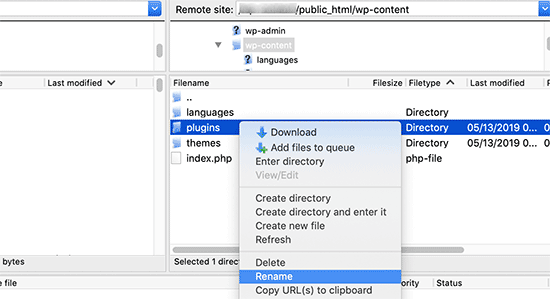
Simply rename the plugins folder to ‘plugins_backup’. This will deactivate all WordPress plugins installed on your website.
We also have a detailed tutorial on how to deactivate all WordPress plugins when you are unable to access WP-Admin.
Once you have deactivated all plugins, try logging in to your WordPress site. If you succeed, then this means that one of your plugins was causing the issue.
Revert Back to the Default Theme
WordPress themes can also cause conflicts after upgrading to a newer version of WordPress or the theme itself. To find out whether the problem is being caused by your theme, you will need to deactivate it.
The process is similar to deactivating plugins. Connect to your website using an FTP client. Then, you must go to /wp-content/themes/ directory and rename your current theme directory to ‘themes_backup’.
Once you have done that, then try logging in again. If you succeed, then this means your theme was causing the issue.
You can now reinstall a fresh copy of your theme to see if this resolves the issue. If the problem reappears, then you will need to contact your theme’s support or switch to a different WordPress theme.
We hope this article helped you resolve the WordPress login page refreshing and redirecting issue. You may also want to see our complete WordPress troubleshooting guide or check out our top picks for the best WordPress plugins and tools to grow your site.