How to Use the Zip Command in Linux to Compress Files


Introduction
The Zip command in Linux is a powerful utility that compresses files and directories into a single archive file using the .zip format. Compressing files reduces the size and helps to pack multiple files together for faster data transfer or storage. Many operating systems, such as Windows, macOS, Linux, and Unix support the Zip format, allowing you to pack and extract files across major platforms.
This article explains how to use the zip command in Linux to effectively compress and optimize files.
The zip Command Syntax in Linux
The following is a basic zip command syntax:
zip [options] zipfile filesIn the above zip command:
[options]: Includes optional flags that modify the command’s behavior.zipfile: Specifies the name of the resulting Zip archive.files: Defines the files or directories you want to compress.
Set Up Sample Files and Directories
Follow the steps below to create sample files and directories to test the zip command in linux:
- Switch to your user’s home directory.
console
$ cd
- Create multiple sample text files. For instance,
file.txt,file1.txt,file2.txt,newfile.txt, andfile.log.console$ touch file.txt file1.txt file2.txt newfile.txt file.log - Create sample directories, such as
diranddir1. Then create asub_dirsub-directory underdir1.console$ mkdir -p dir dir1/sub_dir - Switch to the
dirdirectory.console$ cd dir
- Create new files in the directory, such as
file1.txt,file2.txt,sys.log, andauth.log.console$ touch file1.txt file2.txt sys.log auth.log
Use the Most Common zip Command Options
The following are the most common zip command options:
| Option | Description |
|---|---|
-r |
Recursively compress directories and their contents. |
-j |
Junk (omit) directory names from the Zip archive. |
-m |
Move the specified files into the Zip archive (delete files after zipping). |
-u |
Update existing entries in the Zip archive with newer versions. |
-d |
Delete entries from the Zip archive. |
-x |
Exclude specific files or patterns from being zipped. |
-q |
Quiet mode, suppress output messages for less verbosity. |
-v |
Verbose mode, display detailed output during the compression process. |
-9 |
Use the best compression method to maximize file size reduction. |
-e |
Encrypt the Zip archive with a password for added security. |
Run Practical zip Command in Linux with Examples
Follow the steps below to run some zip command examples:
- Compress a single
file.txtfile into a Zip archive and name itarchive.zip.console$ zip archive.zip file.txt Output:
- Compress
file.txt,file1.txt, andfile2.txtfiles into a single Zip archive. For instance,archive.zip.console$ zip archive.zip file.txt file1.txt file2.txtOutput:

- Compress the
dirdirectory and all its contents including sub-directories intoarchive.zip.console$ zip -r archive.zip dir/Output:

-
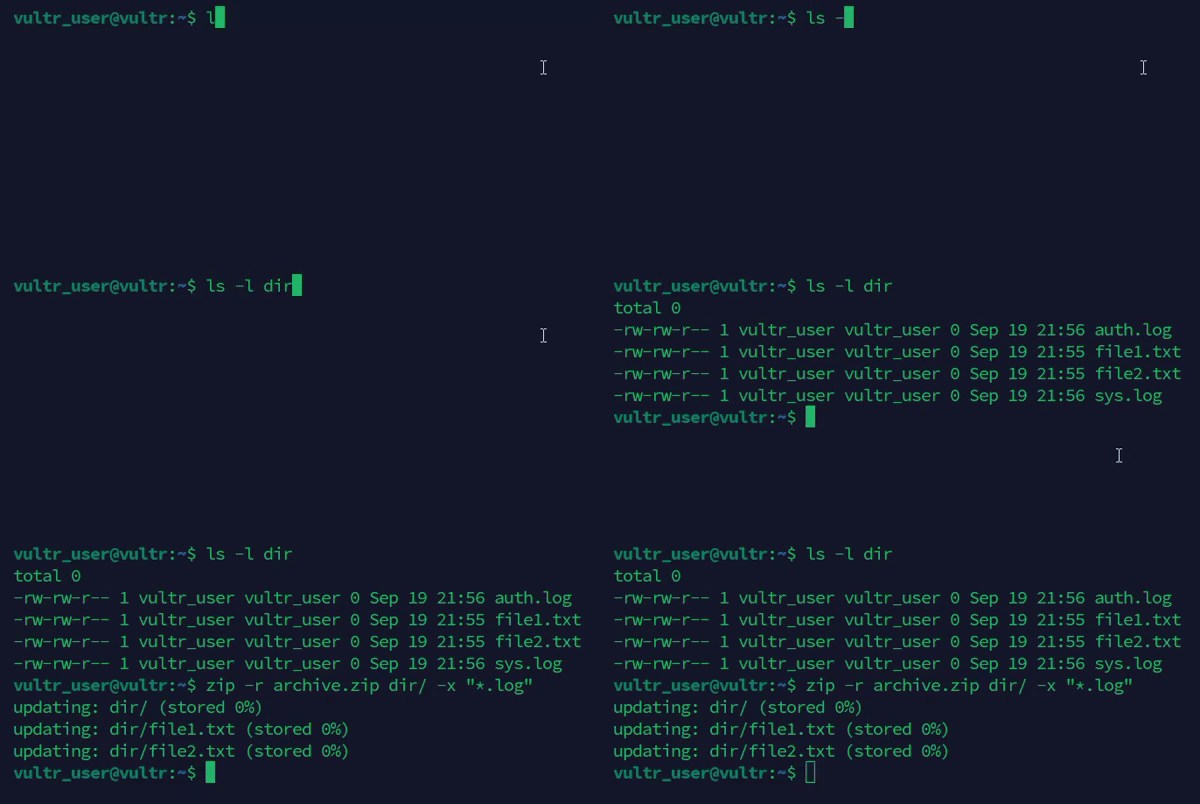
Exclude specific files from the archive, such as all
.logfiles.console$ zip -r archive.zip dir/ -x "*.log"
Output:
- Add the
newfile.txtfile to an existingarchive.ziparchive.console$ zip -u archive.zip newfile.txtOutput:

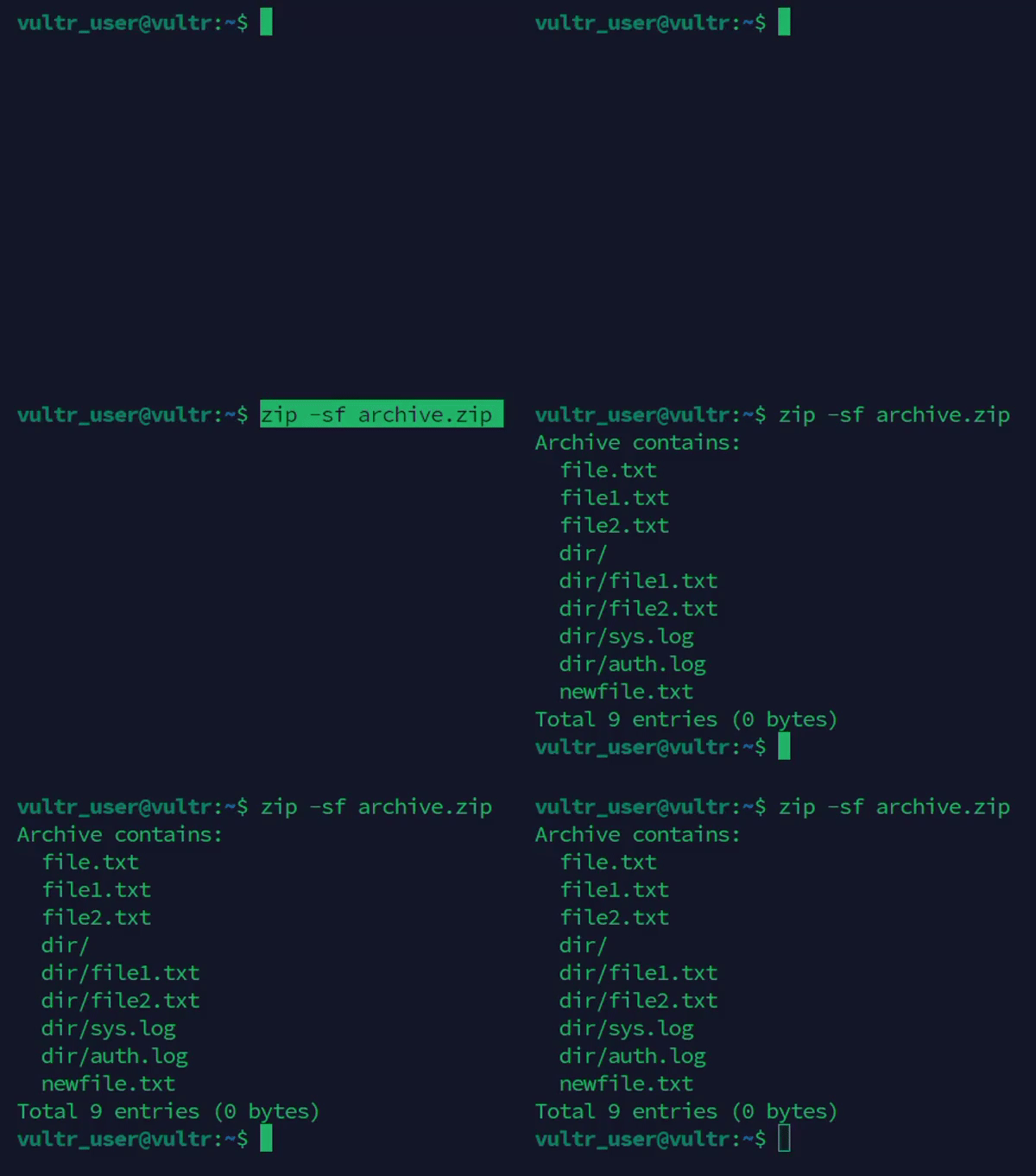
- List the contents of the
archive.ziparchive using the-sfoption.console$ zip -sf archive.zipOutput:
- Overwrite or update the
archive.ziparchive withfile1.txtandfile2.txt. The command replacesfile1.txtandfile2.txtin the archive if the files exist.console$ zip -o archive.zip file1.txt file2.txtOutput:

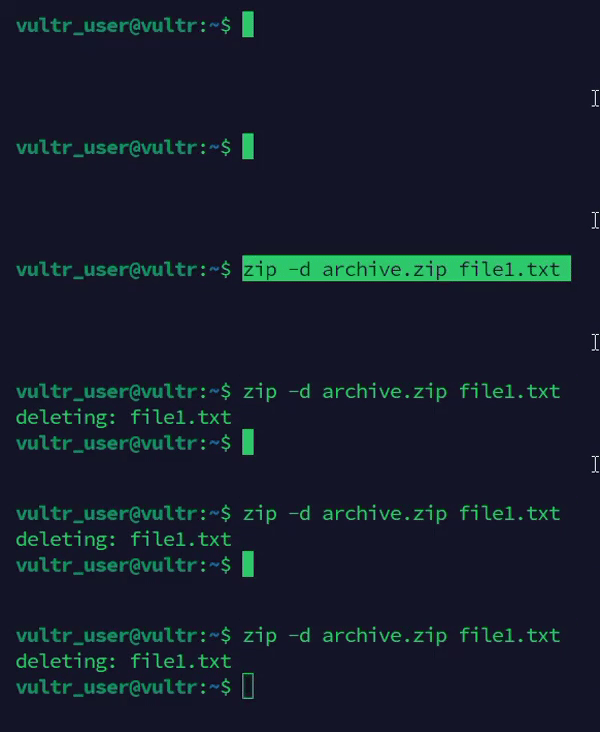
- Delete specific files, such as
file1.txtfrom thearchive.zipconsole$ zip -d archive.zip file1.txtOutput:
- Extract files from the
archive.ziparchive.console$ unzip archive.zipOutput:

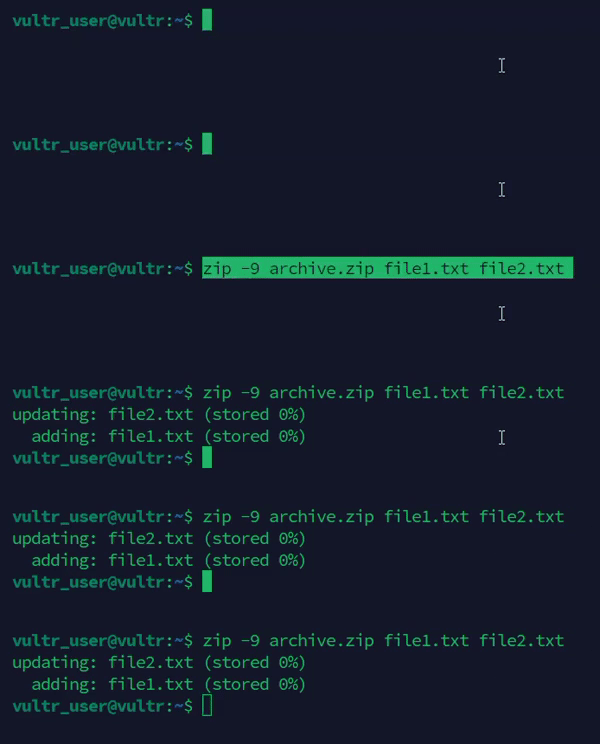
- Specify the
-9option to compress files with the best compression method and reduce the archive size. The command may take more time to complete.console$ zip -9 archive.zip file1.txt file2.txtOutput:
- Compress the
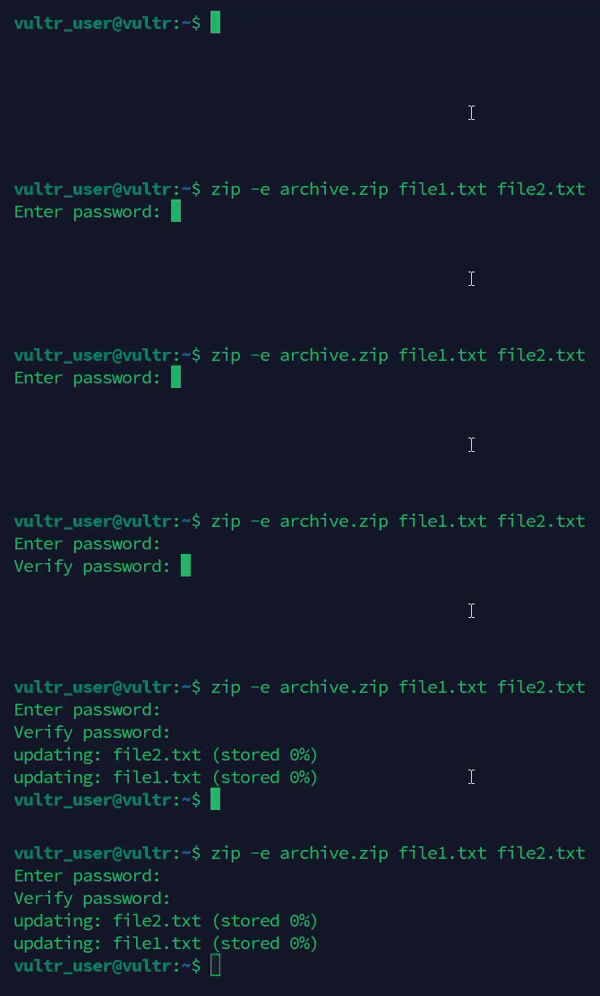
file1.txtandfile2.txtfiles and encrypt thearchive.ziparchive with a password. When prompted, enter a password. You’ll need it when unzipping the file.console$ zip -e archive.zip file1.txt file2.txtOutput:
Use Advanced
zipCommand Options- Use the
-joption to compress thefile1.txtandfile2.txtfiles without including the directory paths in the archive.console$ zip -j archive.zip /path/to/file1.txt /path/to/file2.txtOutput:

- Select and compress multiple
*.txtfiles using the wildcard character*.console$ zip archive.zip *.txtOutput:

- Use the
-voption to display detailed output when compressing thefile1.txtandfile2.txtfiles.console$ zip -v archive.zip file1.txt file2.txtOutput:

- Compress the
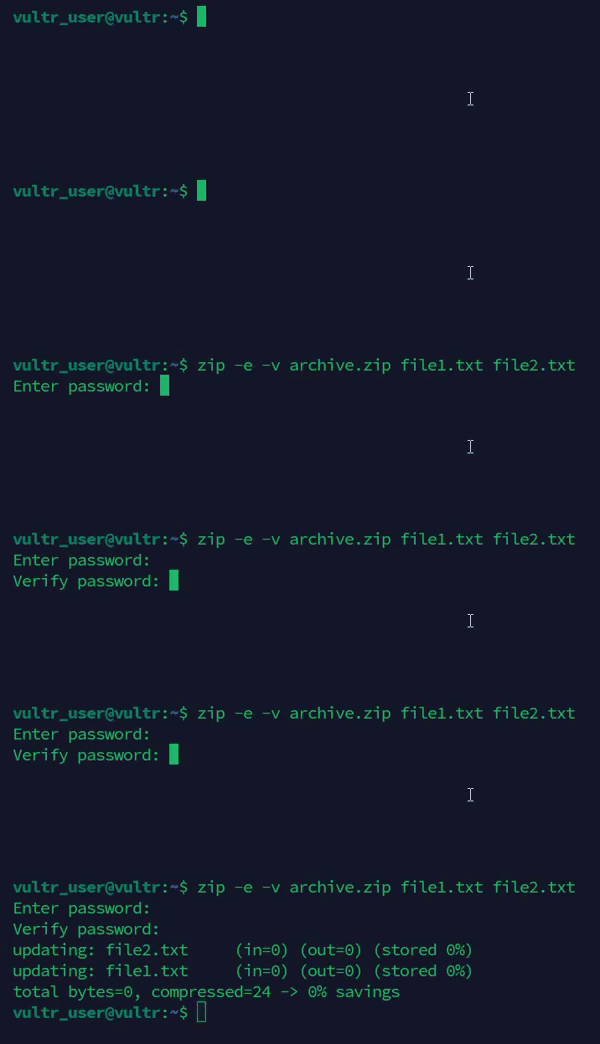
file1.txtandfile2.txtfiles intoarchive.ziparchive, encrypt the archive, and display detailed output.console$ zip -e -v archive.zip file1.txt file2.txtOutput:
- Compress the
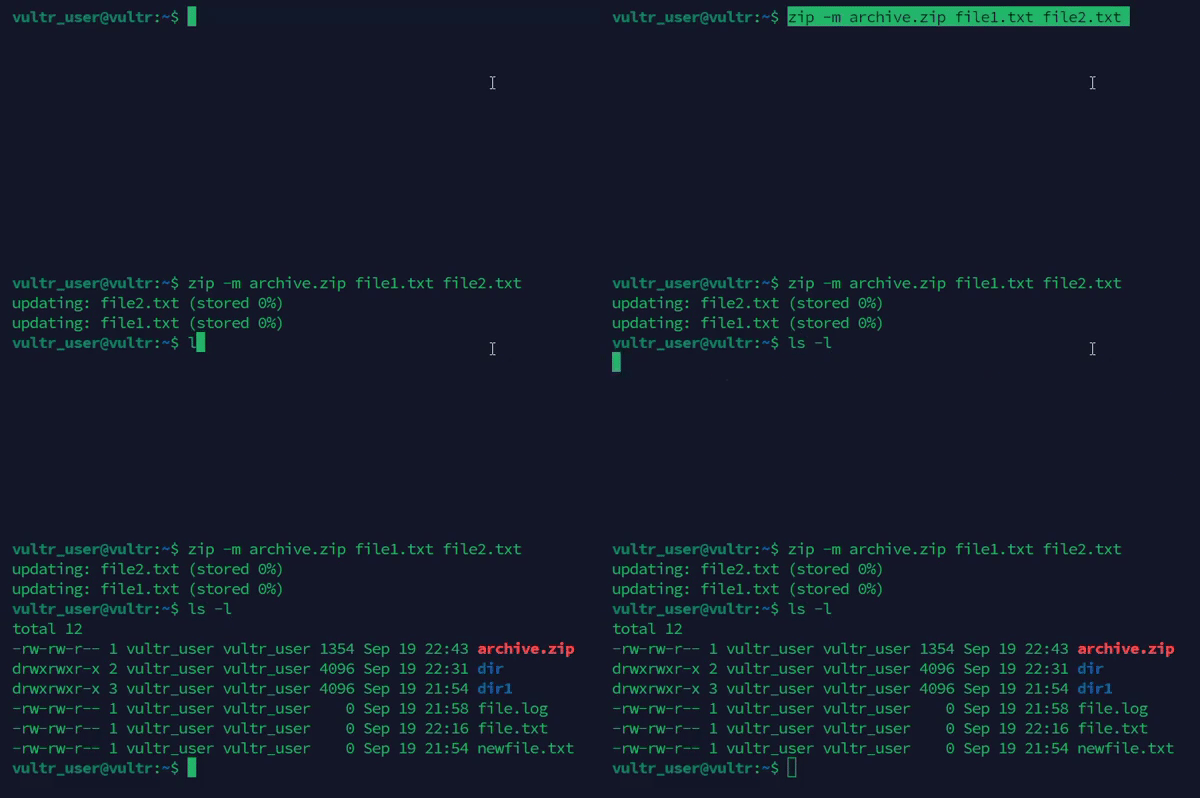
file1.txtandfile2.txtfiles intoarchive.zipwhile deleting the source files.console$ zip -m archive.zip file1.txt file2.txtOutput:
-
Unzip the archive.ziparchive into thedir1directory.console$ unzip archive.zip -d dir1/Output:

-
Create a new archive.ziparchive and compress its contents using a different compression level, such as -9. console$ zip -r -9 archive.zip dir/Output:

-
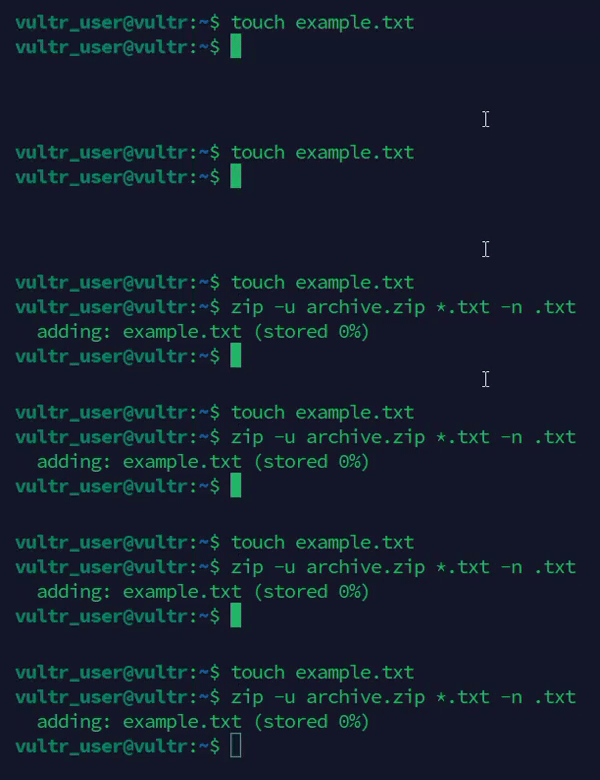
Handle file conflicts in the archive.ziparchive using the uoption. For instance, the following command updates the archive with newer versions of files to avoid overwriting files in the existing archive. -n .txtinstructs the command only to update the .txtfiles. console$ zip -u archive.zip *.txt -n .txtOutput:
Combine
zipwith Other CommandsYou can combine the
zipcommand with other commands for advanced use cases as detailed below:- Combine
findandzipcommands to find and compress files modified in the last 24 hours under the/home/vultr_user/dirdirectory. Thezip archive.zip -@inputs the file paths from thefindcommand results and adds them to thearchive.zipfile.console$ find /home/vultr_user/dir -type f -mtime -1 -print | zip archive.zip -@
Output:

- Combine
findandzipcommands to find and compress files larger than a specific size like 10MB.console$ find /home/vultr_user/dir -type f -size +10M -print | zip large_files.zip -@
Output:

- Pipe the output of the
ls -l /home/vultr_user/dircommand to thezipcommand. The command lists all files in the/home/vultr_user/dirdirectory and compresses them intoarchive.zip. The hyphen-option allows thezipcommand to read from standard input.console$ ls -l /home/vultr_user/dir | zip archive.zip -
Output:

Conclusion
You have used the Zip command in Linux to compress files and directories. The
zipcommand reduces storage size, improves data transfer, and allows file portability. - Combine
- Use the